
User Role and Access
Updated Sep. 23, 2026 by SupportUser Role and Access is where you decide who can get into your enterprise account and what each person can do once they are in.
Every authorized user is given a user type. The user type sets their starting permissions, and you switch individual features on or off from there.
 Where to find it:
Settings → Permissions → User role and access
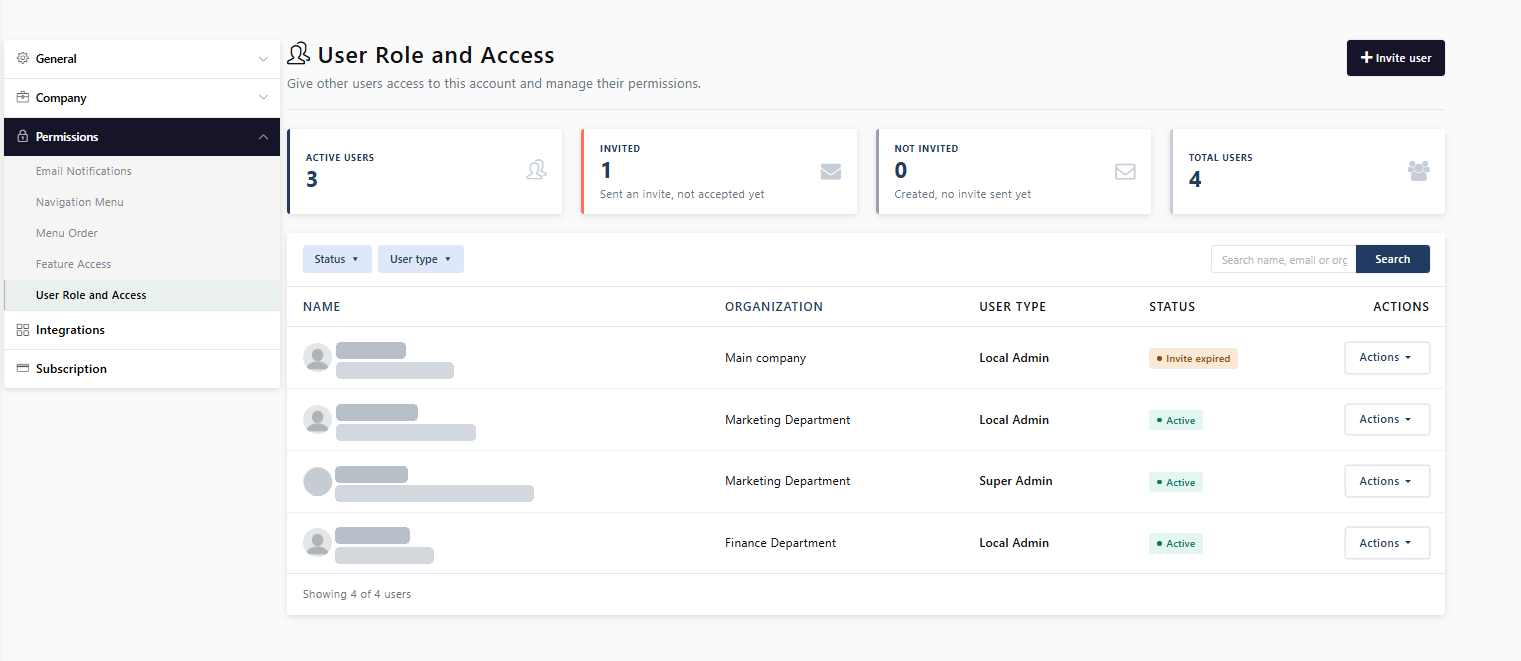
 Understanding user types
There are four user types. Each one reaches a different part of the account.
|
User type |
|
What they can reach |
|
Can their permissions be edited? |
|
|
|
|
|
|
|
Super Admin |
|
Every feature and every organization in the account. |
|
No. A Super Admin always holds every permission, so the matrix is locked. |
|
|
|
|
|
|
|
Admin |
|
Every feature in the main company, across all organizations. |
|
Yes — by a Super Admin. |
|
|
|
|
|
|
|
Local Admin |
|
Only the organization(s) they belong to, and only the features you allow. A Local Admin must belong to at least one organization. |
|
Yes — by a Super Admin or an Admin. |
|
|
|
|
|
|
|
Program Sponsor |
|
By default, the engagements and packages they are assigned to, and nothing else. That is a starting point, not a boundary: Their local admin can switch on any other feature available to this user type, at View, Edit or Edit & Delete. |
|
Yes — by a Super Admin, an Admin, or a Local Admin in the same organization. |
 Note
Note
Some features are never available to certain user types, and the difference is large.
- An Admin is blocked from one feature only — Billing & Subscription.
- A Local Admin is blocked from editing packages products, pricing and coaches and from the Settings area with one exception: User Role and Access can be granted to them, which lets them view, edit or delete Program Sponsors — and nobody higher.
- A Program Sponsor is blocked from settings and bulk engagement upload and from editing package products, pricing and coaches.
Wherever a feature is unavailable, the row is greyed out and marked “Not available to a [user type]”, and the whole area reads “Not available” if none of it applies.
Who can manage whom
A user can only edit permissions for, or remove, someone below their own level.
- Super Admin — can manage Admins, Local Admins and Program Sponsors
- Admin — can manage Local Admins and Program Sponsors
- Local Admin — can manage Program Sponsors in the same organization
- Program Sponsor — cannot manage any user
How permissions are set
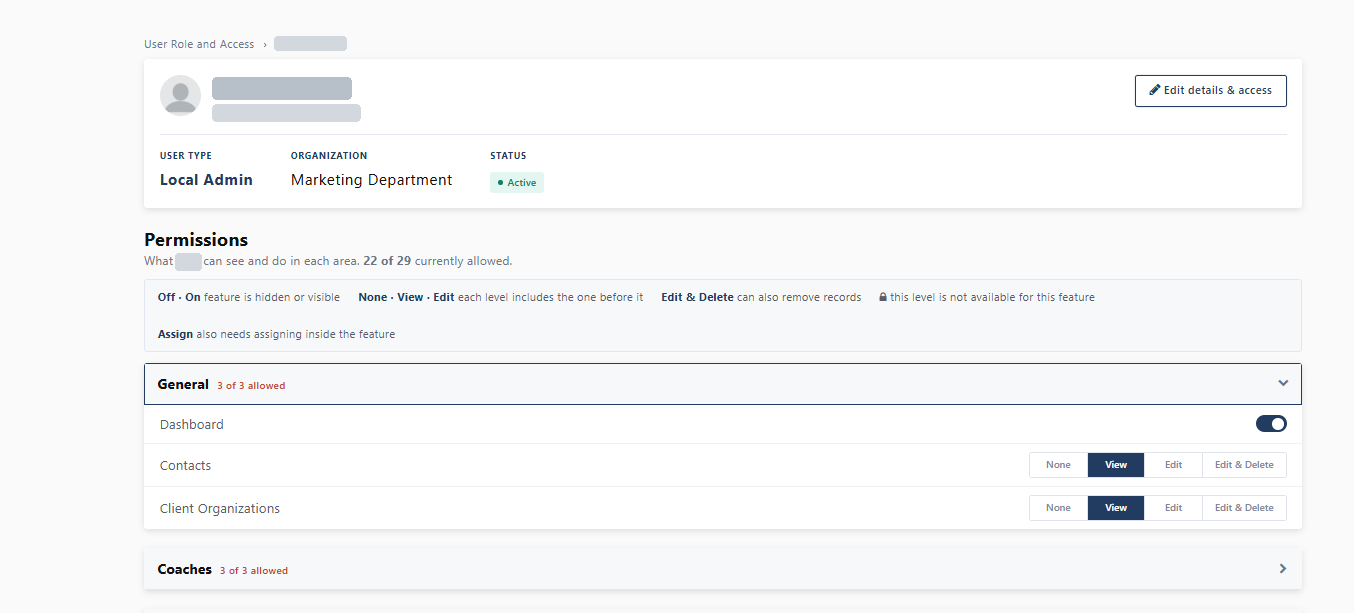
Permissions are set feature by feature on the user’s permissions page. There are 44 features in total.
The ceilings are: Super Admin 44, Admin 43, Local Admin 29, Program Sponsor 27. A Super Admin always sits at the maximum, because their matrix cannot be edited.
|
Control |
|
What it means |
|
|
|
|
|
Off / On |
|
The feature is hidden or visible. |
|
|
|
|
|
None / View / Edit / Edit & Delete |
|
Each level includes the one before it. Edit & Delete can also remove records. |
|
|
|
|
|
|
|
That level does not exist for this feature, so there is nothing to set. |
|
|
|
|
|
Assign |
|
The permission is on, but the user still has to be added inside the feature itself. |
|
|
|
|
|
|
|
The feature is locked for the whole account and nobody can switch it on — not the account owner, not a Super Admin. The contact owner has to reach out to [email protected] to unlock it. |
A permission that has to be unlocked
One permission behaves differently from every other one on this page. View session log data, at the foot of Reports & Logs, controls who can read the notes a coach writes against a coaching session — the content behind Session Logs → a session → its detail page.
It is locked for the whole account by default, and locked means locked: no user type can switch it on, including the account owner. The row shows a  and reads “Contact your provider to enable” and the control is greyed out.
Note
This does not touch the coaching relationship. This permission governs the admin side of the account only. Coaches write their session notes and choose what to share with their coachee exactly as they always have, and coachees see whatever their coach has shared with them — none of that changes, whether the permission is locked or open. What it controls is narrower: whether an authorized user who is not part of the session, such as an Admin, a Local Admin or a Program Sponsor, can open those notes from Session Logs.

To unlock it, the account owner contacts the provider.
Once the account is unlocked the permission behaves like any other: it appears with a normal control and it can be granted down the hierarchy — a Super Admin can grant it to an Admin, an Admin to a Local Admin, a Local Admin to a Program Sponsor. Each level can only pass it to the level below.
Add a user
- Go to Settings → Permissions → User Role and Access.
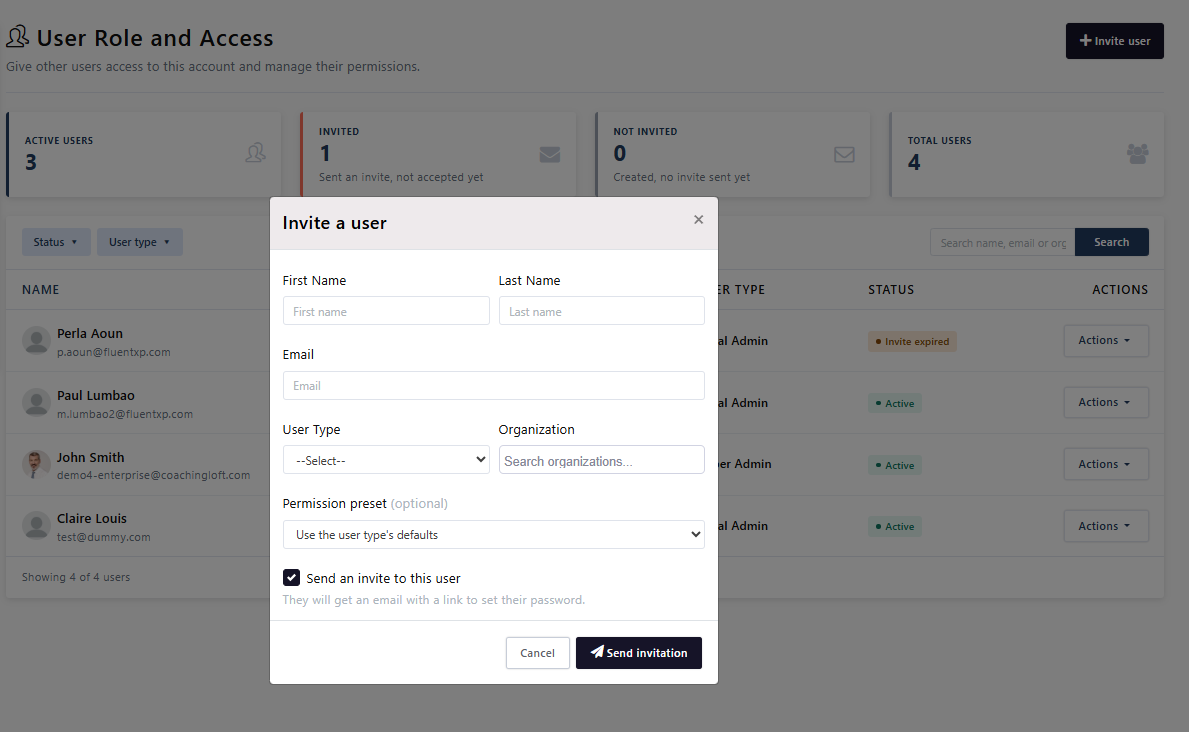
- Click Invite user.
- Enter First Name, Last Name and Email.
- Choose a User Type.
- Choose an Organization. The field only appears for the two user types that use it.
- Local Admin — required. You can select more than one.
- Program Sponsor — optional. Leave it empty and they can be assigned to any engagement or package. Their profile will then show Main company — that is simply the default label for a user with no specific organization, not a restriction. Set an organization instead and they can only be assigned within it.
- Super Admin and Admin — the field is hidden. They work across the whole account.
- Optional: choose a Permission preset to fill the matrix with a ready-made starting point.
- Decide how the account starts.
- Leave Send an invite to this user ticked to email them a link to set their password straight away. The link is good for seven days.
- Untick it to create the account first. You land on their permissions page and can send the invitation whenever you are ready.
- For a Program Sponsor. They cannot be assigned to an engagement or a package until they have accepted it and signed in — until then they will not appear in the assignment list.
- Click Send invitation — or Create user if you unticked the box.
- Review the permissions on the page that opens, adjust what you need, and click Save permissions.
Permission presets
A preset fills the permission matrix with a ready-made starting point for a common role. You can change any switch afterwards — a preset is a shortcut, not a lock.
|
Preset |
|
Use it for |
|
What it turns on |
|
|
|
|
|
|
|
IT / Systems |
|
Someone who manages domains, sign-in and integrations, with no access to coach or coachee records. |
|
Edit on Company Logo, Colour Scheme, Custom Domain, Email Sending Domain, Email Messages, Email Notifications, Navigation Menu, Menu Order, Integrations and Two-Factor Authentication. View on Company Information. Dashboard on. No records of any kind. |
|
|
|
|
|
|
|
HR / People |
|
Someone who runs coachees, groups and programmes, with no settings access. |
|
Edit on Contacts, Coachees, Coachee Groups, Engagements, Packages, Assessments, Feedback and Files. View on Coaches. On for Coach Pools, bulk engagement upload, creating packages and sharing packages with coachees, Reports and Session Logs. No Settings at all. |
|
|
|
|
|
|
|
Finance |
|
Someone who handles invoices and agreements and only needs to read the programmes they bill against. |
|
Edit on Agreements and Invoices. View on Client Organizations, Engagements and Packages. On for Export data and Reports. No Settings at all. |
|
|
|
|
|
|
|
Read-only Access |
|
A stakeholder who should mostly look rather than change. This is what replaces the old “Read” permission. |
|
View on every record area — contacts, organizations, coaches, coachees, groups, engagements, packages, assessments, feedback, custom questions, products, templates, files, agreements and invoices. Dashboard, Reports, Session Logs and Audit Logs on. No Settings access. Despite the name it is not strictly read-only, so check the matrix after applying it, as you would any preset. |
|
|
|
|
|
|
If you do not pick a preset, the user gets their user type’s defaults:
- Admin — everything except Export data, which starts off. Billing & Subscription is Super Admin only and never appears for them.
- Local Admin — the day-to-day features for their organization, at View or Edit. No Settings of any kind: branding, domains, email, integrations, two-factor authentication, user access and billing are all closed to this user type, not merely switched off.
- Program Sponsor — View on Engagements and Packages. Nothing else, out of 26 they could hold.
Adjust a user’s permissions
- Go to Settings → Permissions → User Role and Access.
- Click the user’s name, or use Actions → Edit.
- Open any of the seven areas.
- Set each feature using its switch or its level buttons.
- Click Save permissions. Discard changes throws away anything you have not saved.
You cannot edit a Super Admin’s matrix — a Super Admin always holds every permission.
Change a user’s details or user type
- Open the user and click Edit details & access.
- Change their name, email, user type or organization.
- Leave Let [name] know their user type changed ticked to send them a short email naming the new user type. It does not list their permissions.
- Click Save details.
 Warning
Changing the user type replaces every permission with that type’s defaults. Anything you customised for that person is lost. Note what they had before you change it.
Assign a Program Sponsor to an engagement
Super Admins, Admins and Local Admins do not need to be assigned — if the permission is on, they see the engagement. Program Sponsors do. Turning the permission on is only half the job.
- Go to Engagements and open the engagement.
- Click Settings.
- Under Assigned users, click Assign user.
- Tick the Program Sponsor's name and click Save.
An engagement takes its organization from its coachee, and that decides who appears in the list.
- Engagement in a named organization — only Program Sponsors in that same organization appear.
- Engagement under Main company — every Program Sponsor appears, whichever organization they belong to.
If the sponsor you expect is missing, check their status first. They must be Active — someone who has been created but not invited, or invited but has not yet set their password, does not appear here at all. Send or resend their invitation, wait for them to sign in, then come back.
Assign a Program Sponsor to a package
- Go to Coaching Packages and choose Options → Edit on the package.
- Click Settings.
- Under Approvals & Visibility → Manage Visibility, click Assign user.
- Tick the Program Sponsor and click Save.
Assigned users can see the package and its incoming inquiries.
Super Admins see every package, always. Admins and Local Admins see it when their Packages permission is on. Program Sponsors need the permission on and to be assigned here.
Set who approves package enrolment
- Open the package → Settings → Approvals & Visibility.
- Turn on Require Approval before enrollment.
- Under Select an authorized user to approve the requests, choose who approves.
- Leave it unselected and requests go to Super Admins, and to Admins who have the Approve packages permission on.
- To route requests to a specific Local Admin or Program Sponsor, turn on Approve packages in that person’s permissions first. Only then do they appear in this list.
Manage authorized users
The four cards at the top of User Role and Access show Active users, Invited, Not invited and Total users.
Filter the list by Status or User type, or search by name, email or organization. Your own account is not in the list — you cannot act on yourself here.
|
Status |
|
What it means |
|
What to do |
|
|
|
|
|
|
|
Active |
|
They have accepted the invitation and set a password. Only Active users can be assigned to an engagement or a package. |
|
Nothing. |
|
|
|
|
|
|
|
Invited |
|
The invitation has been sent but not yet accepted. They cannot sign in, and they cannot be assigned. |
|
Wait, or resend if they have lost the email. |
|
|
|
|
|
|
|
Not invited |
|
The account was created without an invitation. No email has gone out at all. |
|
Send the invitation when you are ready. Their permissions can be set in the meantime. |
|
|
|
|
|
|
|
Invite expired |
|
More than seven days have passed and the invitation was never accepted. |
|
Resend. The old link is dead and will not start working again. |
|
|
|
|
|
|
 Pro Tip
Start from the lowest user type that does the job, then switch on only what the person actually needs. It is far easier to add a permission later than to explain why someone saw something they should not have.
What happens next
Once the user accepts the invitation, they sign in with their email and password. Their user type and permissions apply immediately. If you change a permission later, it takes effect the next time they load the page.