
Manage your appointments
Updated Jun. 04, 2026 by SupportThe Appointments Calendar gives coaches a complete overview of all their coaching sessions—past, current, and upcoming. It’s the central hub for scheduling, updating, and managing all your appointments efficiently in one place. 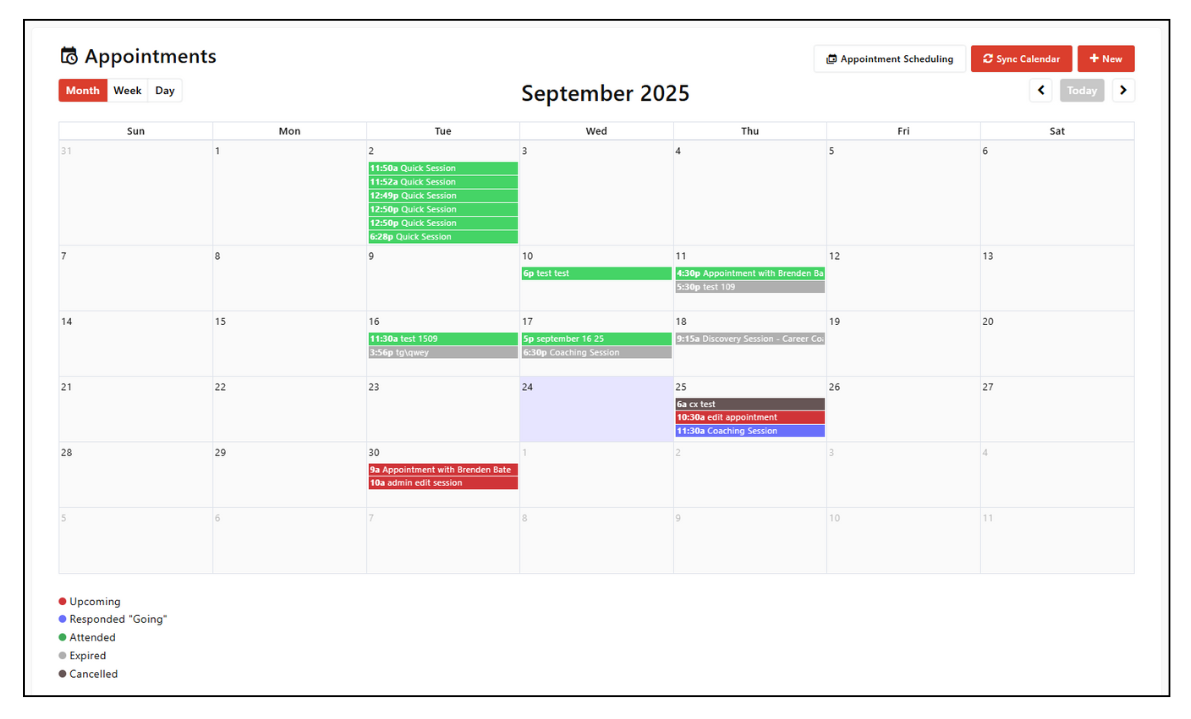
 Schedule Appointments
Quickly set up your coaching sessions from your calendar. Follow these steps to schedule a new appointment with ease:
- Go to Appointments from the left-hand menu of your coach portal.
- Click the + New button at the top right of the calendar, or click directly on a specific date.
- Select your coachee(s):
- Choose one or multiple coachees
- Or select a coachee group
- Complete the required fields:
- Session Title
- Date & Time
- Time Zone (defaults to your availability settings)
- Select the session location:
- In-person: Enter the meeting location
- Online: Choose your preferred platform (if integrated)
- Click Save Changes.
Once saved, the appointment appears on both your and your coachee’s calendars in red  , indicating it is scheduled.
 Important Notes:
- Both coach and coachee receive email and platform notifications, along with daily reminders to confirm attendance.
- An automated reminder is sent 1 hour before the session starts.
- To schedule recurring sessions, click “Create a series of appointments”, set the frequency, and click Save Changes.
Respond to Scheduled Appointments
Both coaches and coachees can confirm or decline sessions directly from their calendars.
- When an appointment is scheduled, it appears in red in both portals.
- If Accepted (Going) → The appointment turns purple
 in both portals.
 - If the Coachee declines (Not Going):
- The session is automatically removed from the coachee’s calendar.
- It remains red in the coach’s calendar with the note “Coachee responded not attending.”
- The time slot becomes available for new bookings.
- If the Coach declines (Not Going):
- The session remains red in both portals with the note “Coach responded not going.”
- The time slot is released for new bookings.
- The session remains red
- Both coach and coachee can manually remove a session from their calendar:
- Coach → Click the
 icon.
icon. - Coachee → Click Cancel Appointment.
- Coach → Click the
Update Scheduled Appointments
Coaches can modify scheduled sessions if changes are needed.
- Click the appointment on your calendar.
- Edit any required fields (title, time, location, etc.).
- Click Save Changes.
- An automatic email notification is sent to all invitees with the updated details.
Important Notes:
- Rescheduled appointments will appear in red until the invitee accepts the update.
- Coaches can modify sessions they created, as well as those added by coachees or administrators.
- Coachees can only edit appointments they have personally scheduled.
- Admins cannot modify or cancel sessions scheduled directly between coaches and coachees.
Cancel Scheduled Appointments
- Open the appointment from your calendar.
- Click Cancel Appointment at the bottom of the page.
- Enter a cancellation reason and click Submit.
Once cancelled, the session color changes from purple (confirmed) to dark grey .png) in both the coach and coachee calendars, clearly indicating that the appointment has been canceled.
in both the coach and coachee calendars, clearly indicating that the appointment has been canceled.
 Appointment Color Legend
 Green: Attended (session successfully completed)
 Light Grey: Expired (coach or coachee did not attend the session)

