
Manage 360 assessments
Updated Dec. 12, 2025 by Support360-degree assessments allow administrators to collect well-rounded feedback from multiple perspectives, including peers, supervisors, and direct reports. These assessments help organizations gain deeper insight into individual performance and leadership behaviors.
 Create a 360 Assessment
- Open the Assessments section from the left-hand menu.
- Click + New to create a new assessment template.
- In the template window, toggle Make this a 360 Assessment.
- When enabled, an additional option will appear: Allow Coachee to Add Participants.
- When turned on, coachees can invite their own participants after the assessment is assigned.
- Administrators may still add participants manually at any time.
- If this option remains off, the administrator can add participantsat any time.
 Complete the Assessment Setup
- Enter the assessment title and an optional description.
- Add Traits (optional).
- If you include traits, add at least four and up to eight.
- Add your questions, choosing from open-ended, multiple-choice, rating scales, and more.
- Click Submit.
The new 360-degree assessment will appear in your Assessment Templates list, marked with a “360” tag for easy identification.
Visibility Note:
All templates created by an admin are visible to all coaches unless you choose to restrict access.
 Note
Note
Administrators can convert any existing assessment template into a 360-degree assessment:
Open the template you want to update and toggle Make this a 360 Assessment.
Share a 360 Template with Coaches
If you want only selected coaches to access a 360 template:
- Click Options next to the template.
- Choose Share Template to Coach.
- Select the coaches you want to share it with.
- Click Save.
Shared templates appear in the coach portal with a  icon.
icon.
Coaches cannot edit admin-created templates; they can only use them as provided.
Assign a 360 Assessment
To assign a 360 assessment to one or more coachees:
- Click Assign next to the chosen template.
- Select Assign to Coachees.
- Set the due date for participants to complete the assessment.
- Add participants:
- If Allow Coachee to Add Participants is enabled, you may add optional participants, and coachees can add more later.
- If disabled, you must add all participants before proceeding.
- Click Assign to Coachee.
- Select one or multiple coachees.
- Click Assign to send the assessment.
Bulk Assign 360 Assessments
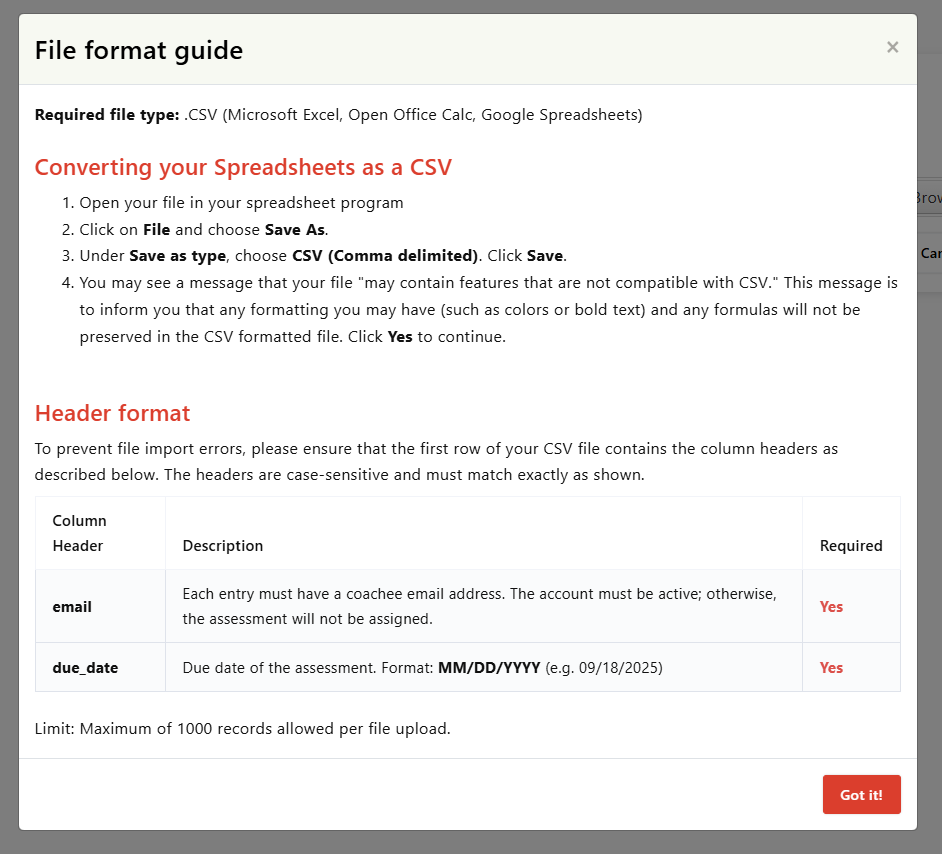
Admins can assign a 360 assessment to many coachees at once using a CSV file.
- Prepare your CSV list.
- Open the Assessments section.
- Click Assign next to the relevant template.
- Choose Bulk Assign.
- Upload your CSV file.
- Click Proceed to complete the assignment.
Tip:
Check the File Format Guide before uploading to avoid errors.
 Notifications
- Coachee: Receives email and in-platform notifications when a 360 assessment is assigned.
- Participants: Receive email invitations to complete the assessment.
- Admin: Notified when participants submit their responses.
Set Assessment Reminders
Automated reminders help ensure both coachees and participants submit on time.
- Open the Reminders tab next to Assigned Assessments.
- Select your desired reminder frequency.
- Click Save Changes.

