
Set up two-factor authentication (2FA)
Updated Aug. 26, 2026 by SupportProtect your account by adding an extra layer of security through Two-Factor Authentication (2FA). This feature requires a second verification step—usually a time-based code generated by your mobile device—in addition to your regular login credentials.
Enabling 2FA helps prevent unauthorized access and ensures that only you can sign in, even if your password is compromised.
 How to Set Up Two-Factor Authentication
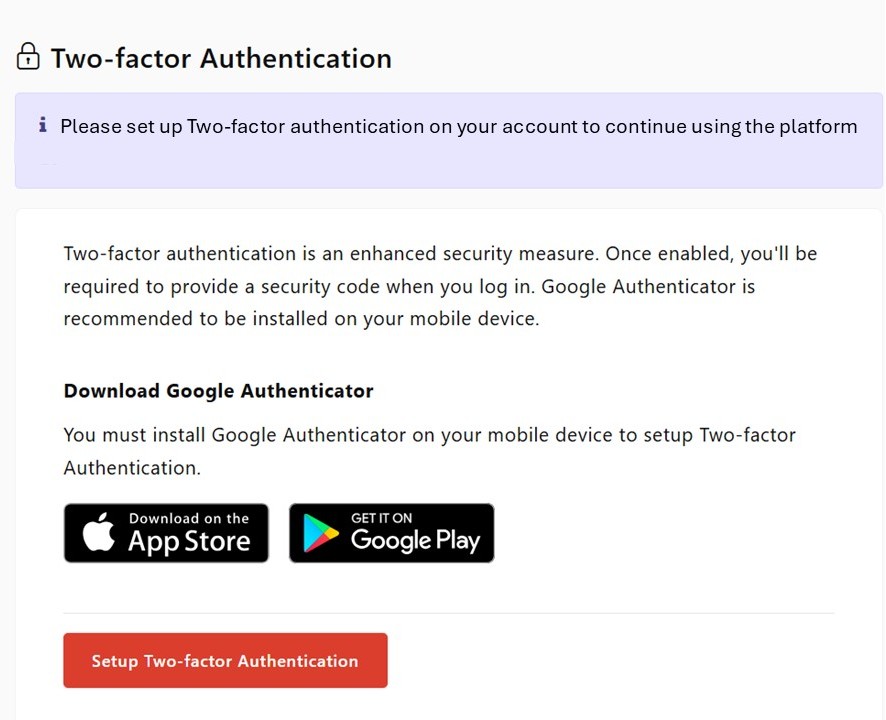
If your admin has enabled 2FA for your account, a setup pop-up will automatically appear when you log in.
 Click Set Up Two-Factor Authentication.
Install the Authenticator App
Before setting up 2FA, you’ll need a verification app such as Google Authenticator or Microsoft Authenticator installed on your mobile device.
- Download and install Google Authenticator (available on iOS and Android).
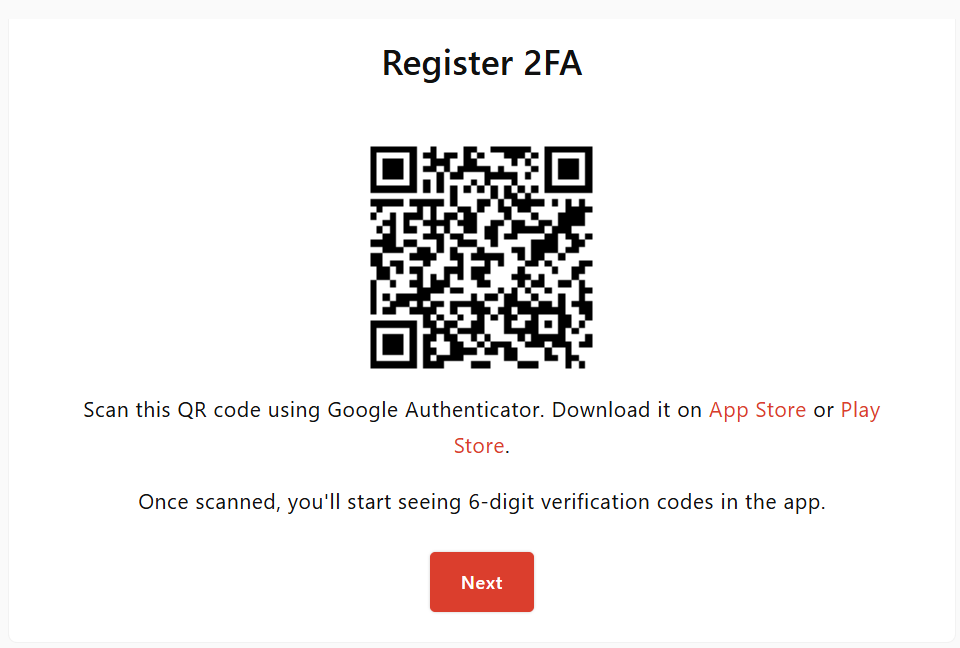
- On the 2FA setup page, click Set Up Two-Factor Authenticator.
- Use the app to scan the QR code displayed on your screen.
- Once scanned, your authenticator will generate a 6-digit code that refreshes every 30 seconds.
Finalizing Setup
- Click Next on the setup page.
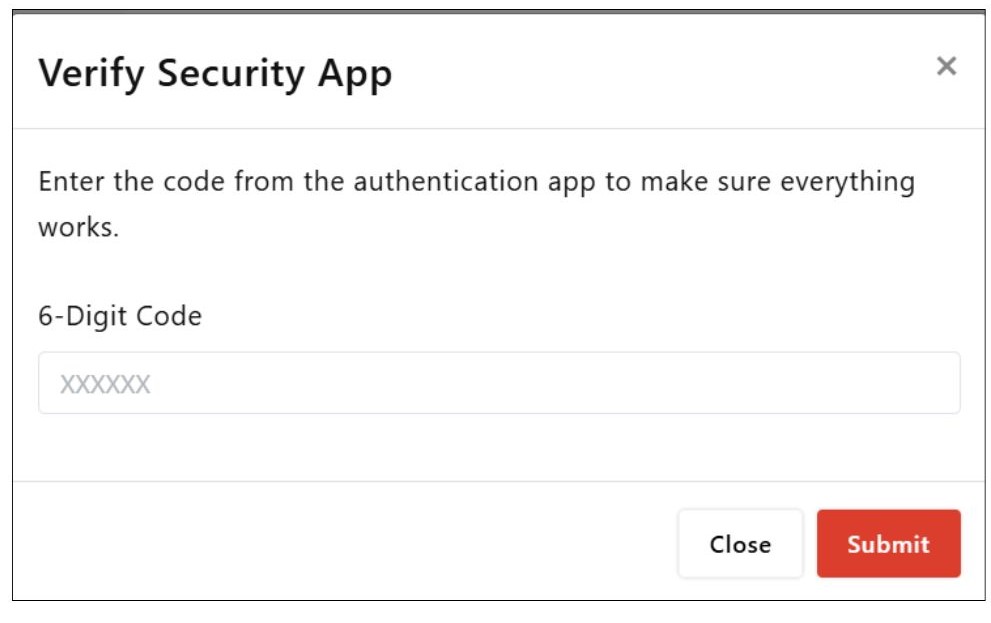
- Enter the current 6-digit code from your authenticator app.
 Important note:
- After activation, you’ll receive a backup code — save this securely. It can be used to access your account if you lose your device.
- From now on, each time you log in, you’ll be prompted to enter the verification code generated by your app.
Use the Backup Code
If you lose access to your mobile device:
- On the 2FA login screen, after entering your email and password, click Use Backup Code.
- Enter your saved backup code in the designated field.
- Once validated, your existing 2FA configuration will be removed.
- You’ll then be prompted to reconfigure 2FA on your new device.

