
Send & receive messages

Updated Dec. 10, 2025 by Support

Real-Time Messaging Between Coaches and Coachees


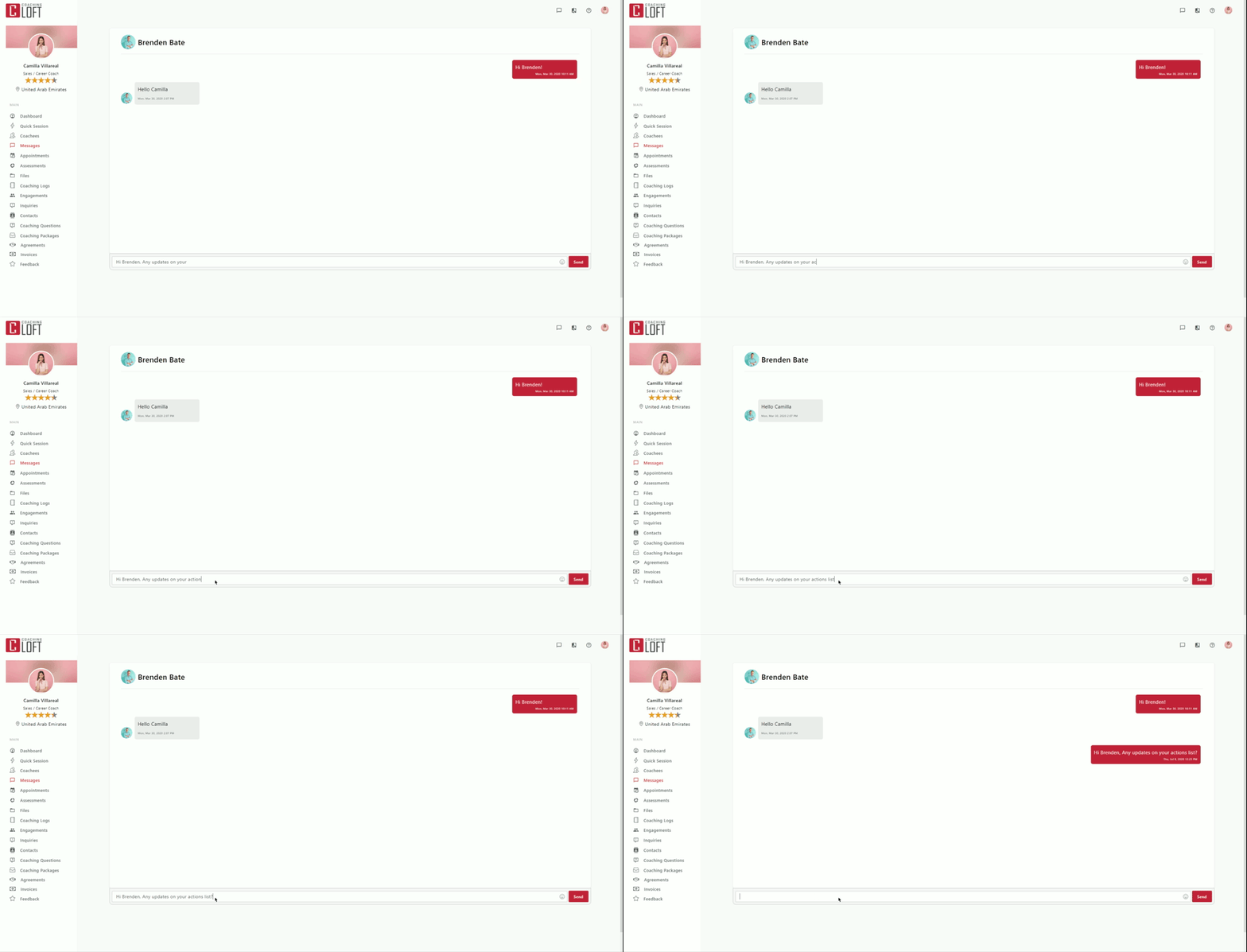
The Messaging feature provides a direct communication channel between coaches and coachees through real-time 1-to-1 and group chat. All messages stay within the platform, ensuring conversations remain private, secure, and easily accessible.

If a recipient is offline, the platform automatically delivers the message to their registered email, ensuring important updates are never missed.
 

General Functionalities


 Access Your Messages

You can access your messages from multiple areas within the platform:

  1. Top Menu: Click the Messages icon at the top-right corner of your dashboard and select Go to Messages.
  2. Side Menu: Click on the Messages tab from the left-side menu.
  3. Coachee List: From your Coachee List, click Options next to a coachee’s name and select Messages to open the chat directly.

 Note:

The Messages icon displays a notification badge whenever a new message arrives, keeping you updated in real time.


 Send Messages


 1-on-1 Messaging

To start a direct conversation with a coachee:

  1. Access the Messages tab.
  2. Click New.
  3. Select the coachee you want to message.
  4. Start your conversation in the chat window.


 Group Messaging

  1. Access the Messages tab.
  2. Click New.
  3. Select the coachees you want to include in the group.
  4. Click Next to open the Group Chat Window and begin your conversation.

Group Settings

  • Rename the Group:
    Go to Options > Rename to customize the group name for easy identification.
  • Add More Members:
    Go to Options > Add Members to include additional participants.
  • View Members:
    Go to Options > View Members to see who is currently part of the group chat. 


Coaching Loft Logo

Loading resources, please wait...

Loader

