
Assign and manage assessments
Updated Dec. 11, 2025 by SupportAdministrators can assign assessments to individual coachees or groups, set deadlines, manage reminders, and track completion status across the organization. This ensures assessments are integrated smoothly into the development and evaluation process.
 Assign Assessments
- Open the Assessments section in the left-hand menu.
- In the Assessment Templates list, click Assign next to the template you want to use.
- Click Assign to coachees
- Update the Assessment Title and Description if required.
- Set a Due Date for coachees to complete the assessment.
- Click Assign to Coachee.
- Select:
- A single coachee, or
- Multiple coachees if the assessment should be assigned broadly.
- Click Assign to finalize.
 Notifications:
- Coachees receive both an email and an in-platform notification informing them that an assessment has been assigned.
- Administrators are notified once responses are submitted.
Bulk Assign Assessments
Admins can assign an assessment to a large number of coachees using a CSV file.
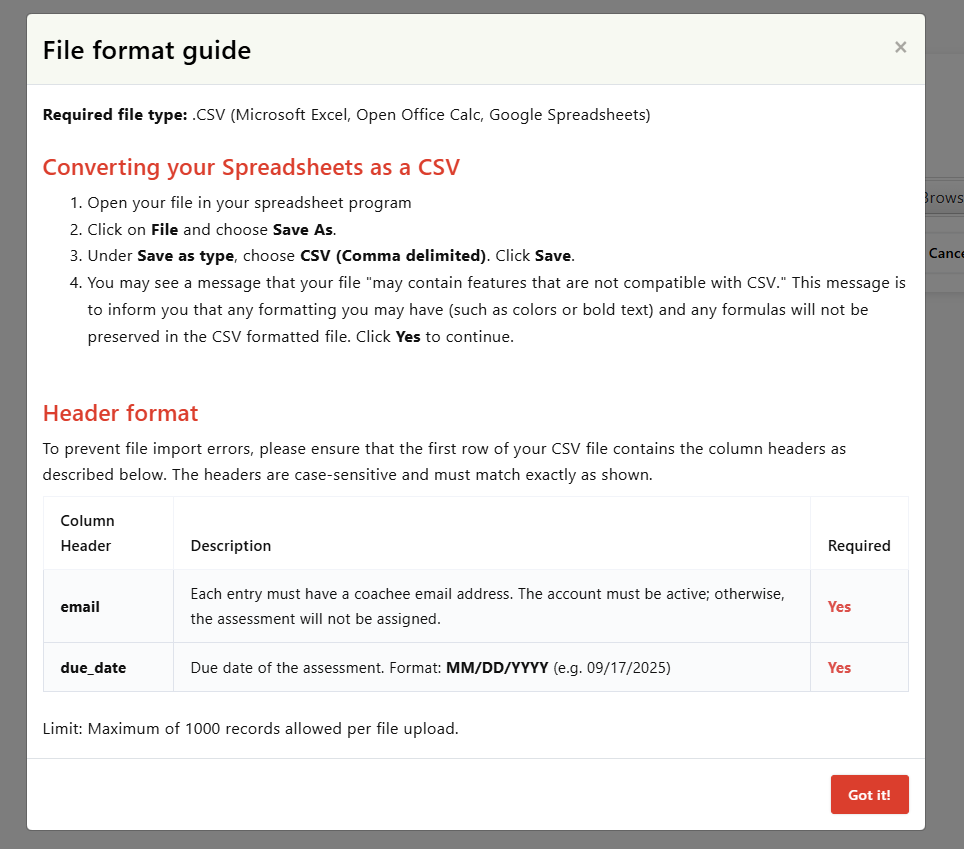
- Prepare your CSV file following the required format.
- Go to the Assessments section.
- Click Assign next to the chosen assessment template.
- Select Bulk Assign.
- Upload your CSV file.
- Click Proceed to complete the bulk assignment.
 Tip:
Tip:
Review the File Format Guide before uploading to avoid import errors.
Set Assessment Reminders
Automated reminders help ensure timely submission of assessments.
- Open the Reminders tab, located top right of the Assigned Assessments section.
- Choose the reminder frequency.
- Click Save Changes to activate reminders.
View Assigned Assessments
Admins can monitor all assessments sent across the organization:
- Open the Assessments section.
- Scroll to Assigned Assessments.
Here you can:
- View all assigned assessments.
- Check status (Pending / Completed).
- Check due dates and completion dates.

Export Assigned Assessments
To export assessment records for reporting or analysis:
- In the Assigned Assessments section, click Export.
- Select the filters or fields you want to include.
- Click Export to download the file.
Your exported file will contain all selected data, making it easy to review, share, or store assessment results.

