
Manage your actions
Updated Oct. 27, 2025 by SupportThe Actions feature helps you stay accountable and organized throughout your coaching journey. It allows you to create, track, and update specific tasks tied to your goals and milestones, ensuring steady progress between coaching sessions.
You can create your own actions or work on tasks assigned by your coach—all from one convenient dashboard.
 Access the Actions Section
- From the main menu, click Actions.
- You’ll see a list of all your existing actions, whether created by you or assigned by your coach.
- Each action displays its title, due date, progress bar, and status at a glance.
This section serves as your personal to-do list within the coaching program, keeping every commitment and milestone in one place.
Create a New Action
To add a new task or goal-related action:
- Click + New on the top-right corner of the Actions page.
- Enter an Action Title and a short Description to explain what needs to be done.
- Set a Due Date to define when you aim to complete the action.
- (Optional) Link to a Milestone: Assign the action to a specific milestone within one of your goals to stay aligned with your larger objectives.
- (Optional) Make It Recurring: If it’s a repeating task, choose how often it should recur (daily, weekly, or monthly).
- Assign a Monitoring Coach: Select the coach who will oversee your progress.
- Click Save to confirm.
 Note:
Note:
Your coach can also create and assign actions to you. When this happens, you’ll receive a notification alerting you of the new task.
View and Manage Your Actions
Once you open the Actions tab, you’ll see a detailed list of all your active and completed actions.
Here’s what you can do:
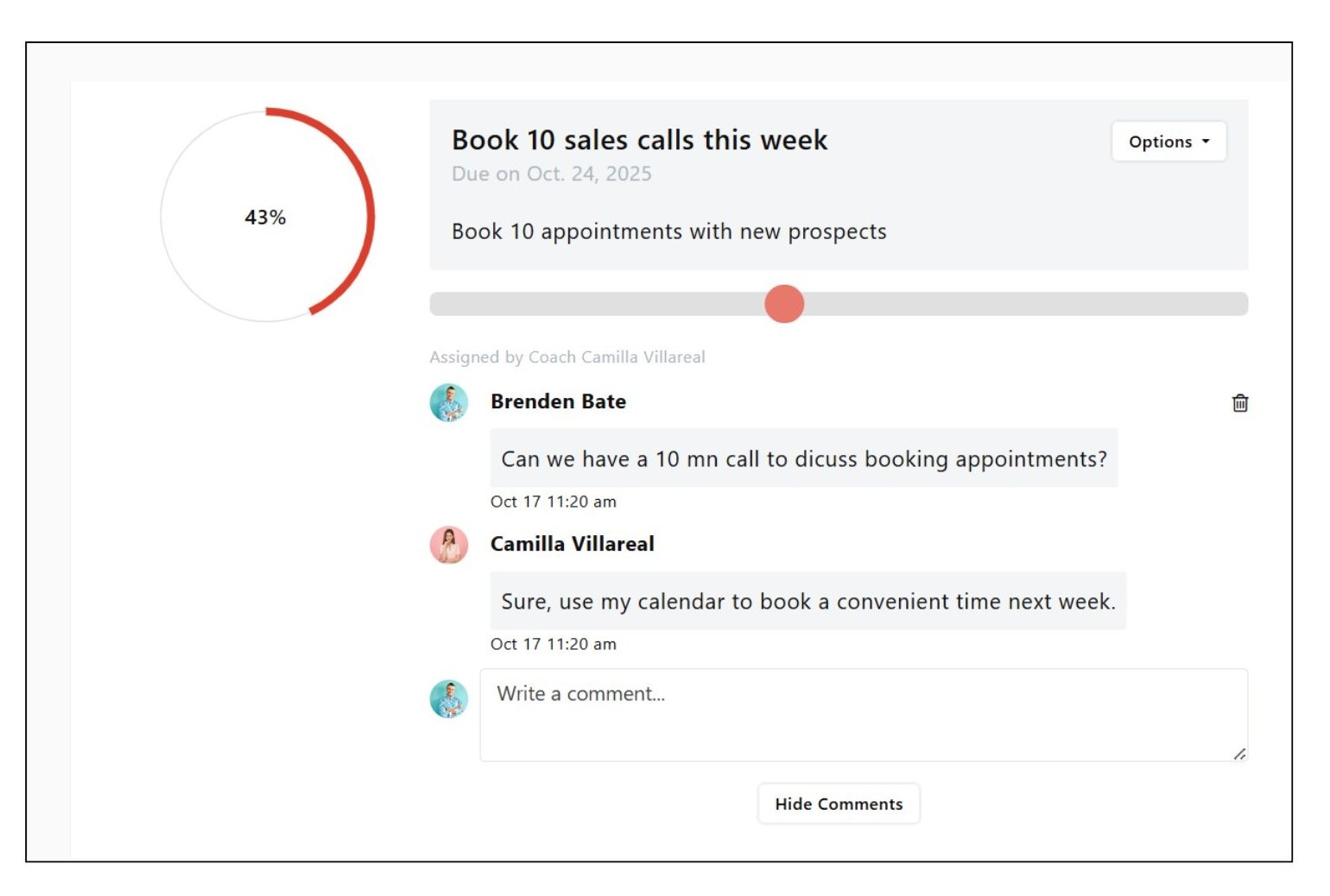
- Track Progress: Each action has a progress bar showing completion percentage. Move the slider manually each time you make progress.
- Edit Actions: Click Options next to the action title, then select Edit to make changes to your task details or due date.
- Assigned by Coach: Actions created by your coach display a notification note under the action title so you can easily identify them.
This setup helps you monitor your performance, stay on schedule, and make visible progress toward your goals.
Use Comments to Stay Aligned
Each action includes a Comments Tab where you can add personal notes or communicate directly with your coach.
You can use it to:
- Record progress updates or reflections.
- Ask for feedback from your coach.
- Keep the discussion about that specific action centralized.
 Pro Tip:
Using the comment bar for ongoing discussions helps you and your coach maintain clarity and accountability for each step of your development plan.
Print Your Actions List
If you’d like a physical record of your progress:
- Go to the Actions page.
- Click Print located at the top-right of the screen, just below the + New button.
This is especially useful if you want to bring a summary of your actions and progress to an in-person session or meeting.

