
Set up two-factor authentication (2FA)
Updated Oct. 30, 2025 by SupportProtect your account with an extra layer of security by enabling Two-Factor Authentication (2FA).
2FA helps safeguard your login credentials by requiring a verification code from your mobile device in addition to your username and password.
This added step significantly reduces the risk of unauthorized access, ensuring only verified users can access your admin portal.
 Set Up Two-Factor Authentication
- Go to Settings from your admin portal.
- From the left-hand menu, select Two-Factor Authentication (2FA).
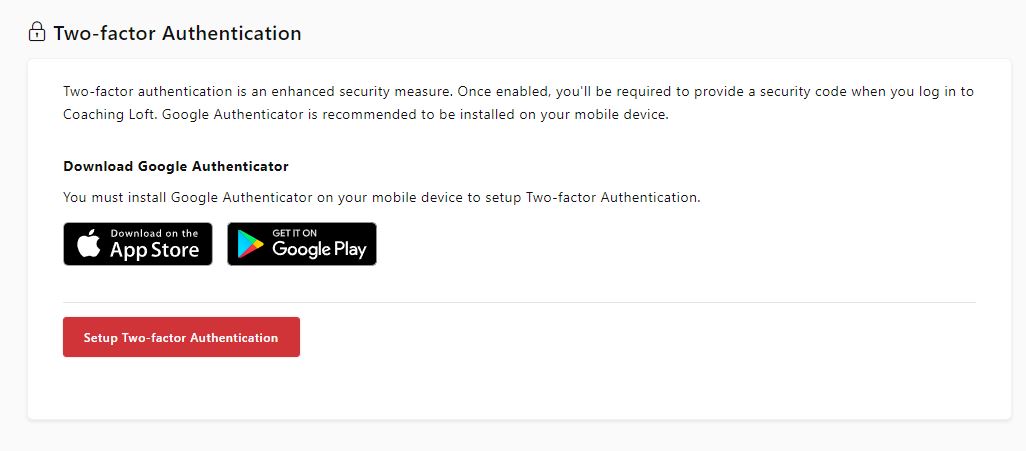
- Click Set Up Two-Factor Authentication to begin the process.
Install the Authenticator App
- Download and install the Google Authenticator app on your mobile device (available on iOS and Android).
- On the 2FA setup page, click Set Up Two-Factor Authenticator.
- Scan the QR code displayed on your screen using the Google Authenticator app.
- Once registered, Google Authenticator will generate a 6-digit verification code that refreshes every 30 seconds.
Finalize Setup
- Click Next.
- Enter the current 6-digit code from Google Authenticator into the verification field.
- When 2FA is successfully enabled, you’ll receive a backup code.
- Save this code in a secure location.
- It allows you to access your account if you lose your 2FA device.
 Note:
Note:
The next time you log in, you’ll be prompted to enter the verification code from your mobile device to complete the login process.
Using a Backup Code
If you lose access to your 2FA device, you can use your backup code to log in and reset your 2FA setup.
- On the 2FA login screen (after entering your email and password), click Use Backup Code.
- Enter your saved backup code in the provided field.
- Once validated, your current 2FA configuration will be removed.
- You will then be prompted to set up 2FA again using a new device.
 Pro Tip:
Require 2FA for all coaches and coachees under your enterprise account to strengthen overall platform security and protect sensitive data across your organization.

