
Create coaching packages
Updated Sep. 23, 2026 by SupportCoaching packages allow enterprise administrators to bundle coaching products into structured, reusable programs that can be offered consistently across the organization. Packages help standardize coaching delivery, simplify enrollment, and ensure a professional experience for coachees.
Before creating a coaching package, at least one product must be created in the system. Products are reusable building blocks that can be included in one or multiple packages.
 Step 1: Create Products
Products represent individual coaching items such as sessions, online courses, or services. These products will later be added to coaching packages.
- From the admin portal, navigate to Coaching Packages in the left-hand menu.
- Click Products to open the Products List.
- Click + Add in the top-right corner.
- Complete the required fields:
- Product Name
- Product Type
- Description
- Amount
- Free of Charge - Enable this option if the product is offered at no cost.
- Status
- Click Save to create the product.
Once products are created, they become available for use in coaching packages.
 Important note
Make sure the product status is set to Live so it can be selected when creating coaching packages.
Step 2: Create a Coaching Package
After setting up products, you can combine them into a coaching package.
- From the Coaching Packages panel, click + New.
- Complete the package details:
- Package Photo
Upload an image to visually represent the package. - Package Name
Enter a clear and descriptive name. - Package Description
Describe the purpose and outcomes of the package. - Duration
- Indefinite: No expiry date. The coachee can enroll in the package at their own pace.
- Time-Bound: Set a specific validity period during which the coachee can enroll in the package.
- Products:
Select one or more products to include in the package. - Amount: The total amount is automatically calculated based on selected products. You can manually adjust the final price if needed.
- Assign Coaches
Select the coaches who are authorized to offer and deliver this coaching package. - Discovery Session
- Show: Allow coachees to book a discovery session before enrolling.
- Hide: Do not offer a discovery session.
- Status
- Draft: Saves the package without making it visible.
- Live: Makes the package available for sharing and enrollment.
- Package Photo
- Click Save to complete the setup.
Step 3: Configure Package Settings
After creating a coaching package, you will be prompted to continue to Package Settings. You can also access these settings at any time by clicking Settings in the top-right corner of the package page.
Package settings allow you to control access, enrollment rules, engagement behavior, and billing options.
 Coachee Access
Control who can see and enroll in the package.
-
Visibility
-
Enable Visible to All Coachees to make the package available to everyone in your organization.
-
Use Share to Specific Coachees to limit access to selected coachees or coachee groups.
-
-
Enrollment Limit per Coachee
Set the maximum number of times a coachee can enroll in this package.
Leaving this value as 0 allows unlimited enrollments.
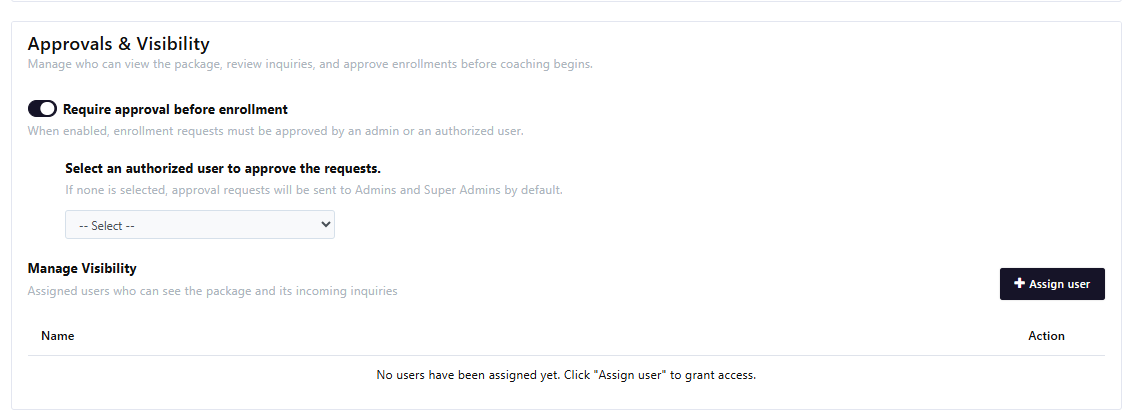
Approvals & Visibility
Control who can see the package, who reviews its inquiries, and whether enrolment needs approving before coaching begins.
Require Approval before enrollment
Turn this on if an enrolment request must be approved before coaching starts. Leave it off and coachees enrol directly.
Choose who approves
With approval turned on, use Select an authorized user to approve the requests to name the approver.
- Leave it unselected and requests go to Super Admins, and to Admins who have the Approve packages permission turned on.
- To route requests to a specific Local Admin or Program Sponsor, turn on Approve packages in that person’s permissions first. Only then do they appear in this list.
Manage Visibility
Click Assign user to choose who can see this package and its incoming inquiries.
- Super Admins see every package, always.
- Admins and Local Admins see it when their Packages permission is on.
- Program Sponsors need the Packages permission on and to be assigned here. Only sponsors who have accepted their invitation appear in the list.
User types and permissions are set under Settings → Permissions → User role & access. See User role and access for how they work.
Engagement Settings
Define how engagements are created and managed.
-
Auto-Create Engagement
When enabled, an engagement is created automatically when a coachee enrolls, or after approval if approval is required, using the package details. -
Allow Coachee Booking
When enabled, coachees can schedule sessions once the engagement is created. When disabled, only coaches can schedule sessions.
Pricing & Invoicing
Configure payment and billing behavior for the package.
- No Payment Needed
Enable this option if the package is offered free of charge. - Invoicing Method
Define how invoicing is handled for this package.- Coachee Invoicing Method
Set the rate billed to the coachee for this package.
Select an invoicing method from the existing list, or click Create Invoicing Method to add a new one. - Note: If No Payment Needed is enabled, the coachee invoicing option will not be displayed.
- Coach Invoicing Method
Define the rate billed by the coach for this package.
Select an invoicing method from the existing list, or click Create Invoicing Method to add a new one.
- Coachee Invoicing Method
Important Note
Invoicing methods apply only when an engagement is created from this package. If no engagement is created, invoices must be issued manually by the admin or the coach from their respective portals using the Invoices feature.
This completes the package configuration. Once saved, the package is ready to be shared and enrolled based on the settings you defined.

