
Use the coaching notepad
Updated Aug. 26, 2026 by SupportThe Coaching Notepad is an all-in-one workspace built to help you run productive and impactful coaching sessions. It brings together everything you need — notes, actions, assessments, and scheduling — in one convenient place, allowing you to stay focused on the conversation and your coachee’s growth.
 How to Access the Coaching Notepad
You can open the Coaching Notepad in two ways:
- Quick Session – From the main menu, select Quick Session to start a spontaneous or unscheduled meeting.
- Upcoming Appointments – From your Coach Dashboard, find the scheduled session and click Start Session to launch the notepad directly from the appointment.
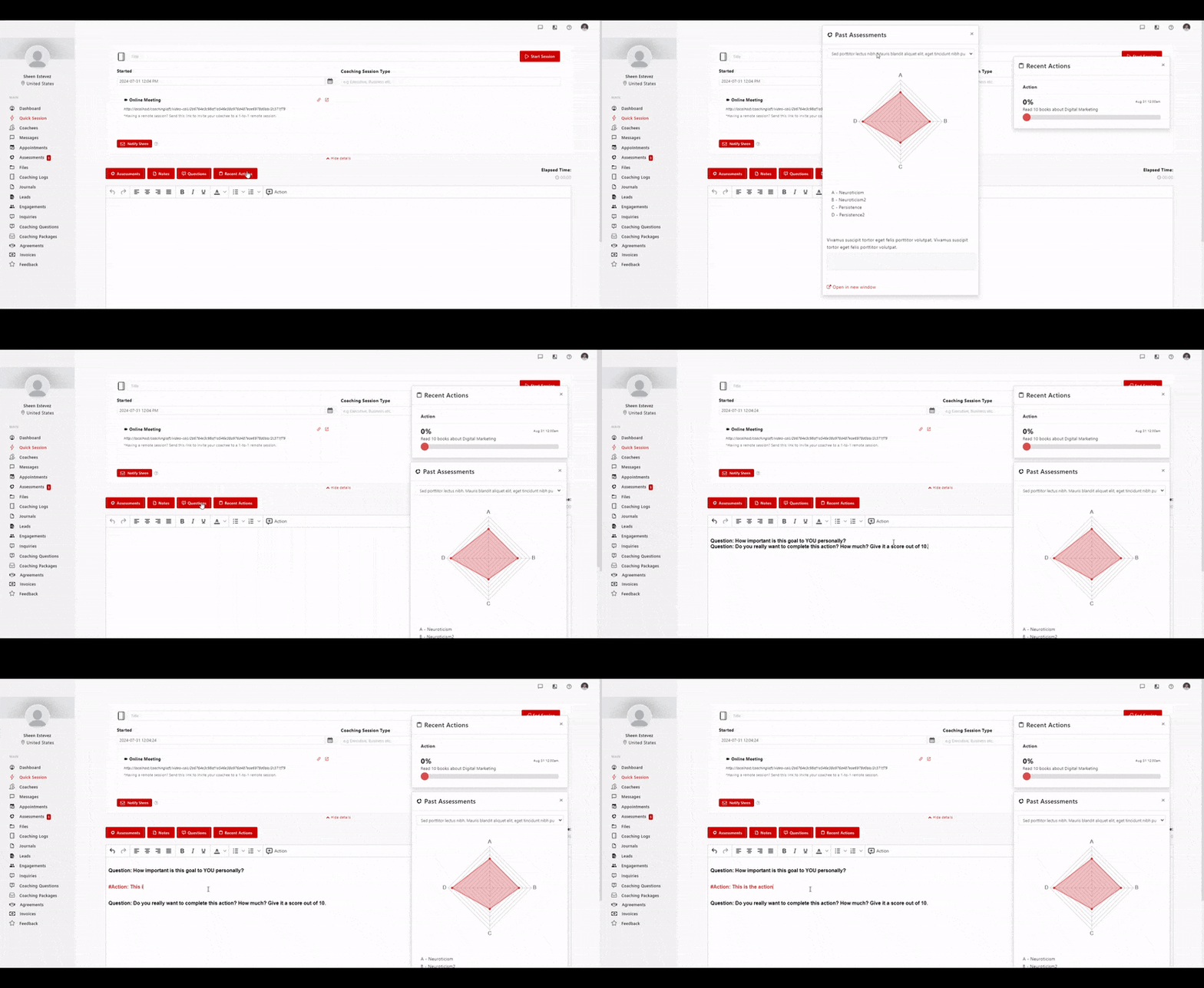
What You Can Do with the Coaching Notepad
The Coaching Notepad provides instant access to key tools designed to streamline your live sessions and keep everything organized:
- Assessment Insights – View your coachee’s completed assessments at any time.
- Private Notes – Access your personal notes prepared before the meeting to guide your flow.
- Assigned Coaching Questions – Refer to previously assigned questions to deepen the discussion.
- Actions – Track coachee tasks and progress in real time.
- Live Note-Taking – Capture ideas, reflections, and next steps directly during the session.
- Assign New Actions – Create new tasks or commitments on the spot; they’ll appear automatically in your coachee’s action list.
- Book the Next Session – Schedule a follow-up session directly from the notepad to maintain momentum.
- Enhance Notes with AI – Turn quick, in-session notes into a clear, organized record, with action items surfaced for you.
- Share Session Notes – Share note summaries to the coachee post-session for accountability.
Enhance Your Notes with AI
Session notes are usually typed quickly, in the middle of a conversation. The AI enhancement turns those raw notes into a clear, organized record — without changing what you meant.
To enhance your notes
- Write your notes in the note-taking area of the Coaching Notepad, or open a saved session log.
- Select Enhance with AI.
- Review the enhanced version in the preview.
- Apply it to your note, or dismiss the preview to keep your original text.
What the AI does
- Organizes your notes into a clear structure with logical sections
- Corrects spelling, grammar, and phrasing while preserving your meaning
- Condenses long notes into the key points discussed
- Surfaces commitments and next steps as clear action items
Note: Your original notes are never replaced until you choose to apply the enhanced version, and nothing is shared with your coachee unless you share the session notes yourself. The AI notepad enhancement is available on Coaching Firm and Enterprise accounts, with no limit on how often you can use it.