
Customize platform email templates
Updated Aug. 27, 2026 by SupportThe Customize Email Messages feature allows administrators to edit the subject line and body of automated emails sent from the platform.
You can tailor the tone, language, and formatting of these messages to match your organization’s communication style and branding.
 Customize Email Messages
- Go to Settings from your admin portal.
- In the left-hand menu, select Company → Customize Email Messages.
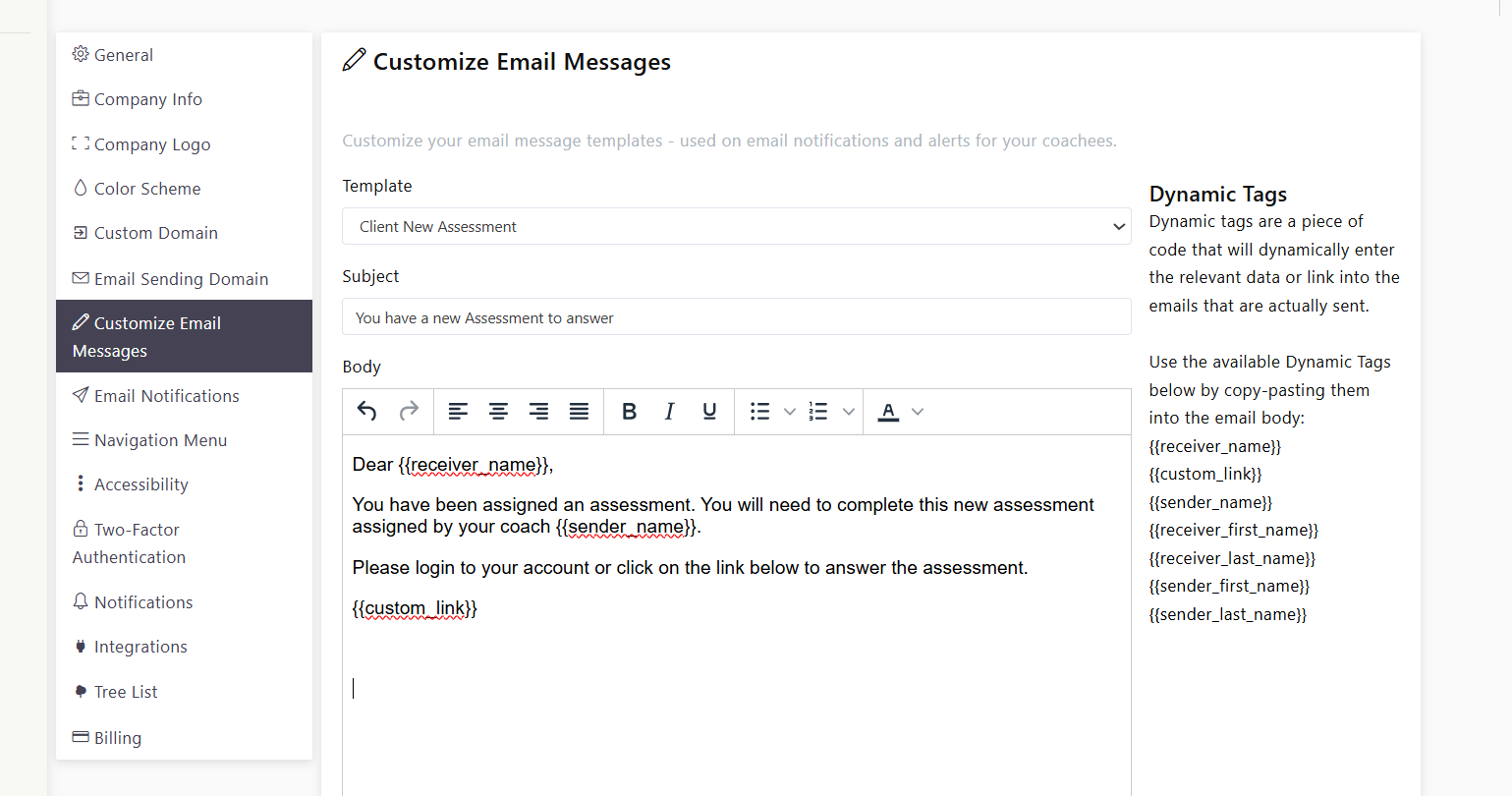
- Click the Template Dropdown Menu to view all available email templates.
- Select the template you wish to edit.
- Update the Subject Line and Email Body as needed to reflect your company’s preferred tone and message.
- Use Dynamic Tags to personalize your emails (see below).
- Click Save Template to apply your changes.
 Using Dynamic Tags
Dynamic Tags automatically pull the relevant information into the emails that are sent — saving time and ensuring each message is personalized.
You can insert these tags enclosed double opening and closing curly braces anywhere in the email body or subject line by copy-pasting them directly.
| Tag | Description |
|---|---|
receiver_name |
Inserts the full name of the recipient. |
receiver_first_name |
Inserts only the recipient’s first name. |
receiver_last_name |
Inserts only the recipient’s last name. |
sender_name |
Inserts the full name of the sender. |
sender_first_name |
Inserts only the sender’s first name. |
sender_last_name |
Inserts only the sender’s last name. |
custom_link |
Inserts a dynamic link relevant to the specific email type (e.g., login, reset password, or invitation). |
What Happens Next
Once saved, your customized templates will automatically apply to all future emails of that type sent by the platform.
You can revisit and modify templates anytime from the same page.

