
Manage your sessions logs
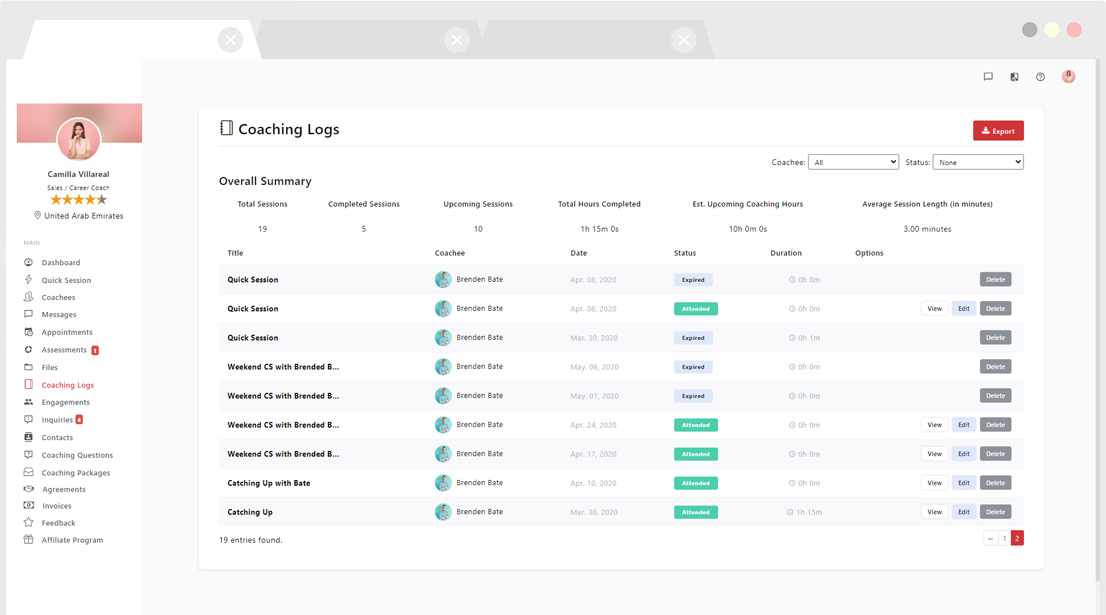
Updated Aug. 26, 2026 by SupportThe Session Logs section provides a detailed record of all your past and upcoming coaching sessions. It includes summary statistics, advanced filters.
You can access your Session Logs by clicking “Session Logs” in the main menu of your coach portal. This feature offers complete visibility into your coaching history and performance, with tools to review sessions, track progress, and analyze activity trends.
 Summary Statistics
Quickly review your overall coaching performance with real-time data, including:
- Total sessions
- Completed sessions
- Upcoming sessions
- Total logged hours
- Estimated upcoming hours
- Average session duration
Filters
Use filters to refine your view and focus on specific data:
- By Coachee: Display sessions linked to a specific client.
- By Organization: Filter sessions by company or Department.
- By Status:
- Scheduled → Upcoming sessions. (marked in
 in your calendar)
 - Attended → Completed sessions. (marked in
 in your calendar)
 - Attended – Late Show → Sessions where the coachee joined late. (also marked in in your calendar)
- To update a session to Attended – Late Show: click the status arrow next to the session and choose this option from the dropdown.
- Cancelled → Sessions that were confirmed but later cancelled. (marked in
.png) in your calendar).
in your calendar). - Expired → Sessions marked as “No Show.” (marked in
 in your calendar)
- Scheduled → Upcoming sessions. (marked in
- By Date Range: Filter sessions by week, month, or custom time period to analyze trends or track progress.
Session Notes
At the end of each coaching session, you can choose whether to share your notes with the coachee.
- If notes are shared, a
 appears next to the session title.
 - If notes are private, a
 appears.
How to share notes with your coachee:
- Go to the Session Logs page.
- Click Options next to the desired session.
- Select Share with Coachee.
 Pro Tip:
You can edit your notes before sharing them:
- Click the session title to open the notepad.
- Click Edit, make your changes, and Save.
OR
- You can select Enhance with AI to organize your notes and surface action items — your original text is kept until you apply the enhanced version.
- Return to Session Logs and share the updated version.
Available on Coaching Firm and Enterprise accounts; see Use the coaching notepad for the full walkthrough.
To unshare session notes:
- Click Options next to the session.
- Select Make this session private.
- The coachee will no longer have access to those notes.
Import Completed Coaching Sessions
If a coaching session took place outside the platform, you can import it to keep your records complete and consistent. Sessions can be imported individually or in bulk.
Import a Single Session
- From your dashboard, click Quick Session.
- Select the coachee for the external session.
- Enter session details (topic, notes, etc.)
- At this point, don’t worry about the date and time.
- End the session and click Save.
- Go to Session Logs from the main menu
- Find the session and click Edit.
- Update the Date, Start Time, End Time, and Duration to reflect the real session details.
- Click Save Changes.
Bulk Import Sessions
- Prepare Your Spreadsheet: Include details such as coachee name, date, start time, end time, duration, and notes.
- Export to CSV: Save your spreadsheet as a CSV (Comma Delimited) file.
- If prompted that formatting will be lost, click Yes—this is normal.
- Upload Your File:
- Go to Session Logs.
- Click Import.
- Review the File Format Guide to ensure your data matches the required format.
- Upload the CSV and click Proceed.
 Important Note:
All imported sessions appear under Session Logs and are automatically included in your reports and performance statistics, just like natively scheduled sessions.
Export Session Logs
Coaches can export session data for reporting or record-keeping purposes.
- Go to Session Logs in the main menu.
- Click Export in the top-right corner.
- Apply filters (by coachee, organization, status, or date range).
- Click Export again to download your report.
Your exported file will include all relevant details according to the filters you’ve applied.
I didn't use the Coaching Notepad on my last coaching session, how do I import previously completed coaching sessions?

