
Manage accessibility
Updated Sep. 24, 2026 by SupportThe Accessibility Settings allow administrators to control what users can see and do across the platform.
From this page, you can configure email notifications, manage the navigation menu, and define which features and functions are accessible to your coaches, coachees, and authorized users.
This flexibility helps streamline the user experience and ensures that each role only accesses the tools relevant to them.
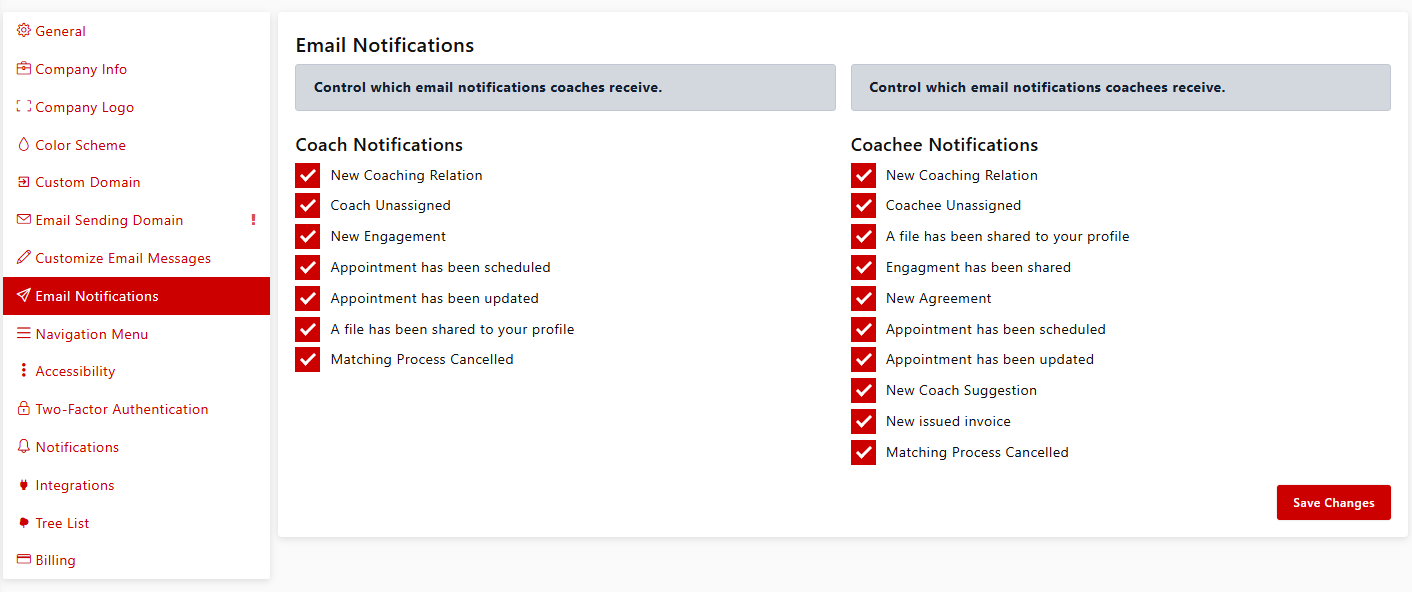
 Email Notifications
This setting allows you to manage which automated email notifications are sent to coaches and coachees from your enterprise account.
By controlling these notifications, you can reduce unnecessary communication and ensure users only receive messages that are important for their role — such as session reminders, goal updates, or feedback notifications.
Navigation Menu
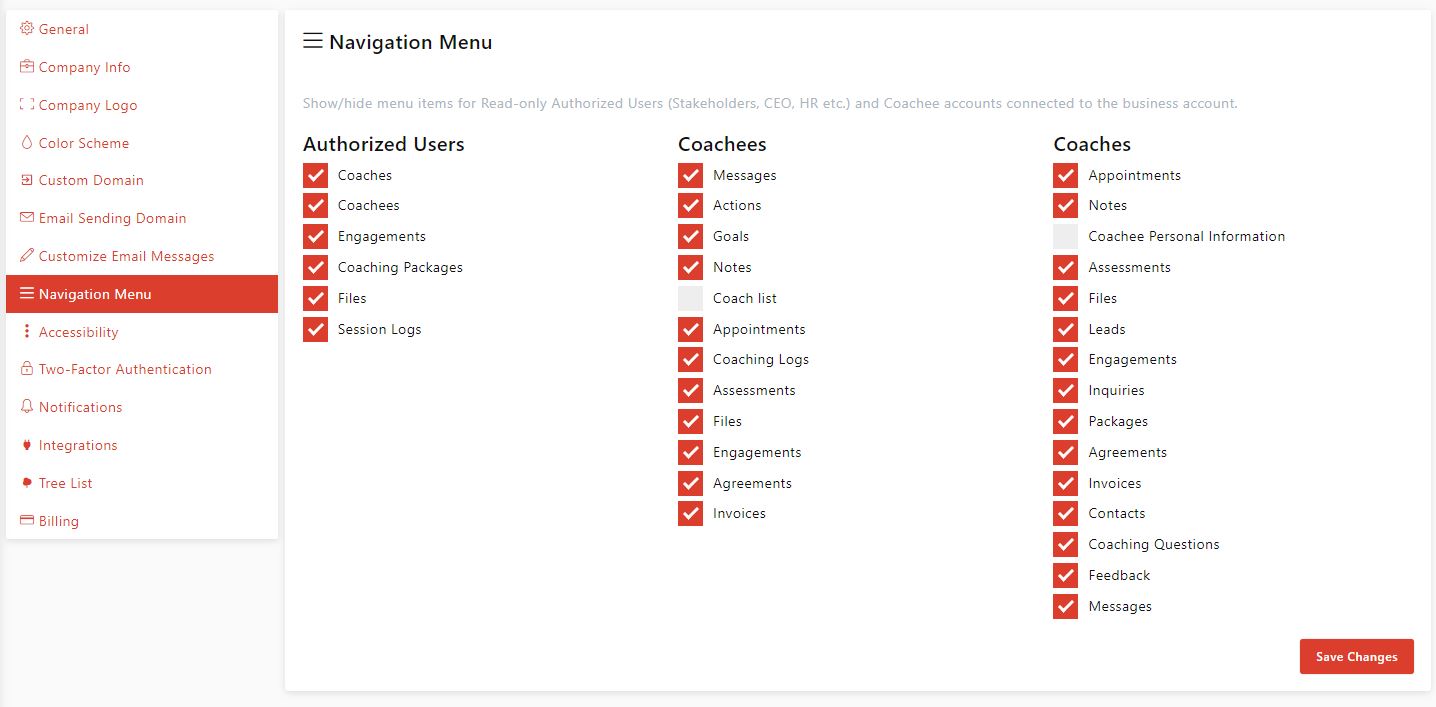
The Navigation Menu setting lets you define which menu items appear for different user types:
- Authorized Users - Super Admin, Admin, Local Admin & Program Sponsors
- Coachees
- Coaches
By customizing the menu, you can simplify navigation for each user type — ensuring that users see only the tabs and features that are relevant to their purpose on the platform.
Feature Accessibility
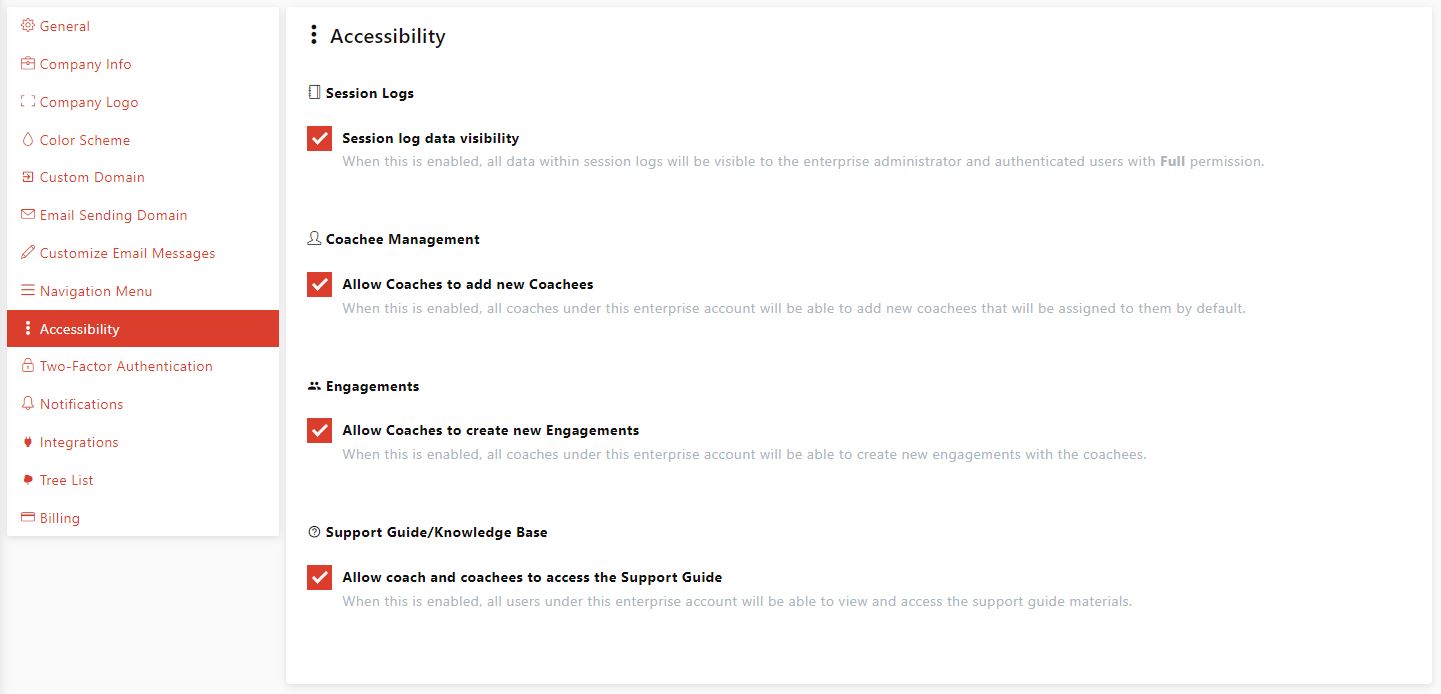
This section allows you to control which platform functionalities are available to your users.
You can enable or disable access to specific tools and modules for each role type, such as:
- Assessments
- Goals and Actions
- File Sharing
- Messaging
- Reports
Adjusting feature accessibility ensures that every user — whether a coach, coachee, or stakeholder — experiences a tailored, role-appropriate interface.
 What Happens Next
After saving your accessibility settings:
- Changes apply immediately to all user accounts under your enterprise.
- Users will only see the features and navigation items enabled for their role.
- Disabled features or menu items will be hidden from their dashboards.

