Set up company branding
Updated Oct. 30, 2025 by SupportYour company branding defines how your organization’s identity appears across the platform.
From this page, administrators can upload the company logo and configure the color scheme to ensure a consistent visual experience for all users.
 Customize Your Branding
- Go to Settings from your admin portal.
- In the left-hand menu, select Company Logo.
- Upload Your Company Logo:
- Supported formats: JPG or PNG (transparent background recommended).
- Your logo will appear on the admin dashboard, coach and coachee dashboard, login page, and in automated emails sent from the platform.
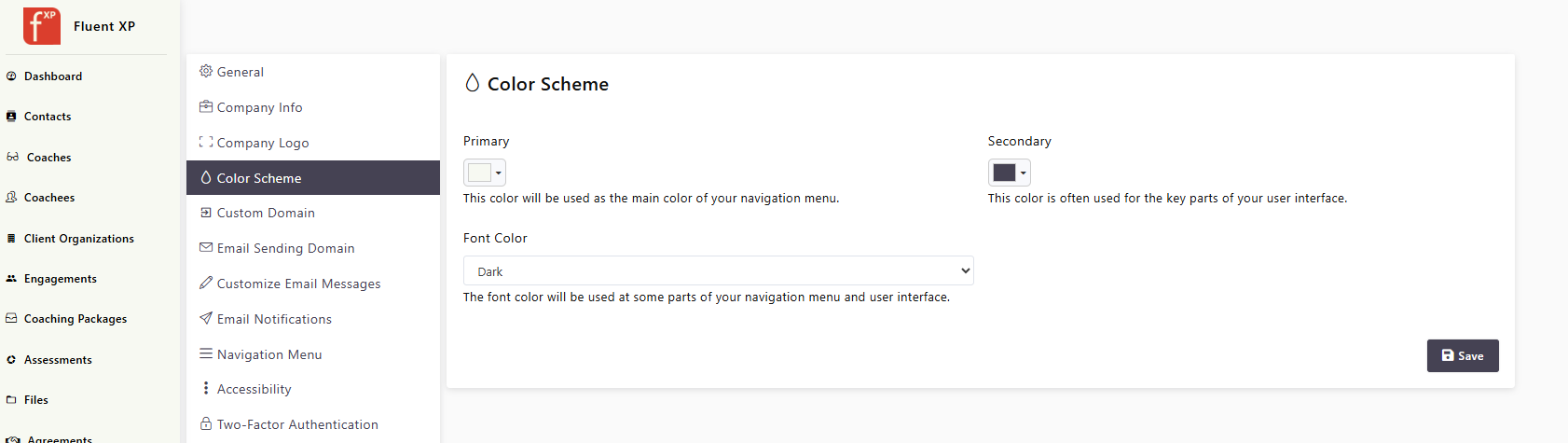
- Select Color Scheme:
- Customize your primary and secondary colors to match your corporate brand.
- Use your official HEX or RGB color codes for accurate visual consistency across all interfaces.
- Font Color: you can choose betwen dark or light font.
- Click Save to apply your design updates.
 Pro Tip:
Maintain high contrast between your background and accent colors for better readability across different screen sizes and devices.
 What Happens Next
Once your company branding is configured:
- Your platform will display your company logo and color scheme across all user portals — admin, coach, and coachee.
- All automated emails and system templates will adopt your updated visual identity, reinforcing a unified brand experience.