Set up your coachee profile
Updated Aug. 26, 2026 by SupportYour coaching journey starts when your coach or organization administrator sends you an invitation to activate your coachee account. The invitation is delivered directly to the email address they provided on your behalf.
 Activate Your Account
You’ll receive an activation email containing a secure link.
- Click the link in your email to set your password and activate your account.
- Use the same email address to log in to your coachee portal.
- Once logged in, you’ll be prompted to complete your personal profile before proceeding.
Complete Your Profile Information
Make sure to fill in all required fields accurately. This information helps your coach personalize your sessions and ensures your data appears correctly across the platform.
 Personal Information
- First Name
- Last Name
- City
- Country
- Preferred Meeting Modality
- Preferred Language.
 Important Note:
Be sure to complete the Preferred Meeting Modality and Preferred Language fields carefully. These preferences are used during AI Matching to help the system identify and connect you with the most suitable coach who best fits your coaching needs.
Upload or Update Your Profile Photo
To personalize your account, add a profile photo.
- Go to your profile page and click Edit Profile or select Update Profile Photo from your dashboard checklist.
- Click on the avatar image to upload a picture from your device.
- Adjust the image using the built-in photo resizer.
- Click Save Changes to finalize.
What Happens Next
Once your profile is set up:
- Your coach or organization admin can begin scheduling sessions, assigning assessments, and sharing learning materials or resources.
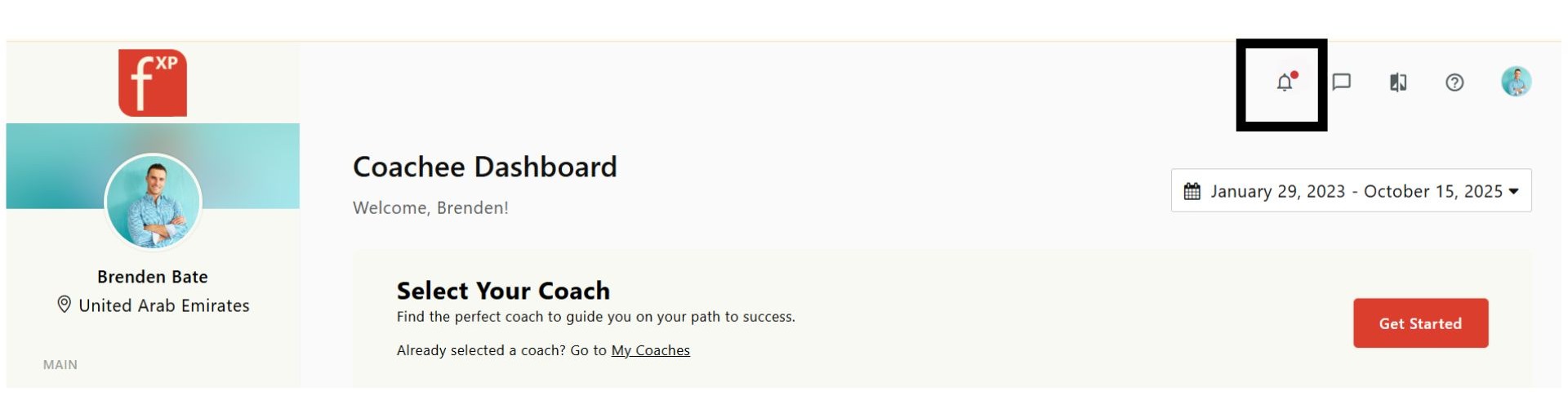
- You’ll receive all updates and reminders directly via email or through the notifications center in your coachee portal.