
Manage your files
Updated Oct. 13, 2026 by SupportThe Files section lets you store, organize and share documents, images, videos, audio files and links with your coachees. To open it, click Files in the left menu.
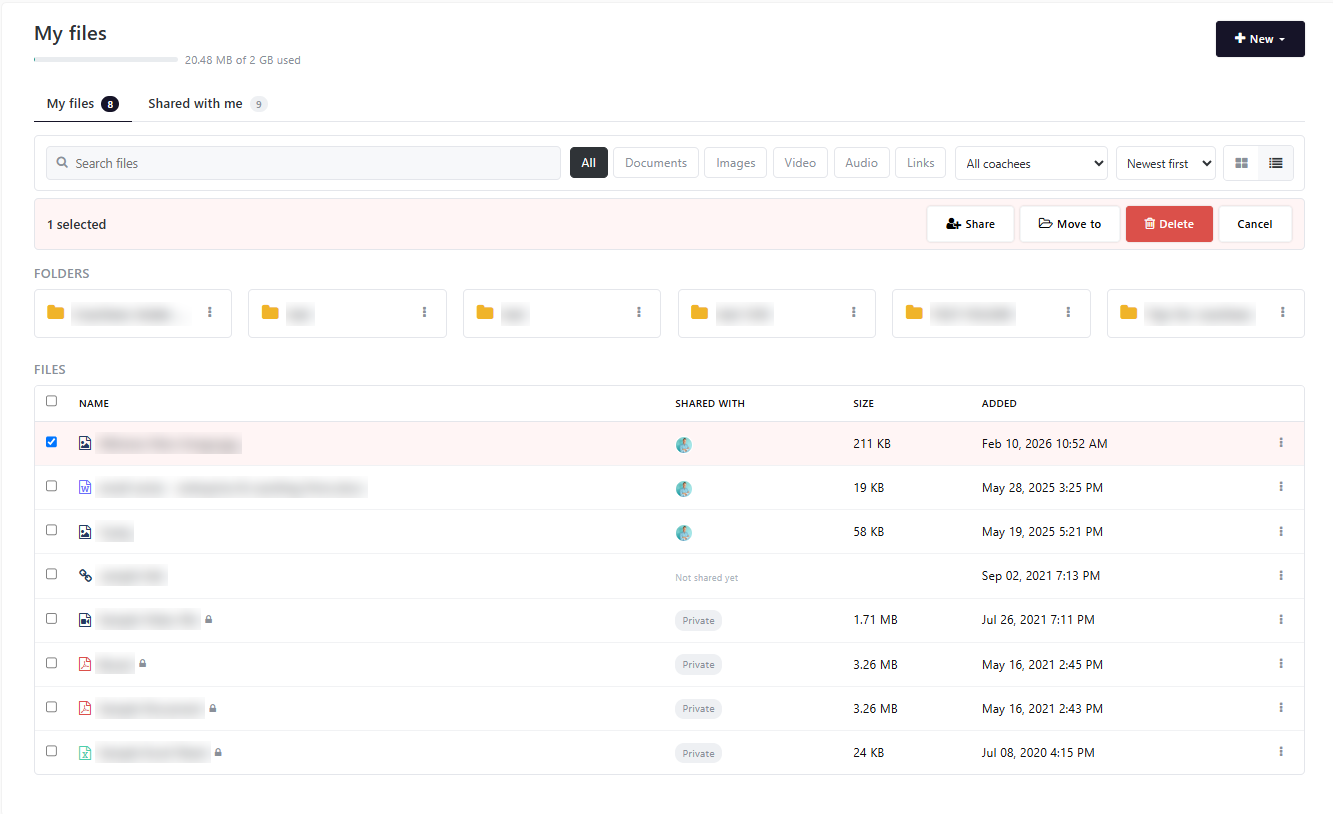
 Your Files page
- My files: the files, links and folders you have added.
- Shared with me: files, links and folders that your company or others have shared with you. You can view and download these, but not edit or share them.
- Storage: the bar under the page title shows how much of your 2 GB storage you have used.
Upload Files
- Click + New in the top-right corner, then Upload files.
- Under Put them in, choose a folder, or leave All files (no folder).
- Under Who can see them, choose Shared or Private — only you.
- Optional: under Share with, choose Coachees or Coachee groups and select the people to share with. You can also share later.
- Drag your files into the upload box, or click choose files.
- Click Upload.
If a file type is not supported, the panel shows an error and lists the file types you can upload.
Add a link
Use links for large files you keep on Google Drive, OneDrive, Dropbox or a similar service. Links do not use your storage.
- Click + New, then Add a link.
- Enter a Title and the Web address.
- Optional: add a Description.
- Click Add link.
New links are not shared with anyone. To share a link, use Share from its menu (see Share a file or folder).
Create Folders
- On the main My files page, click + New, then New folder.
- Enter a Folder name and click Create.
To add files to a folder, choose the folder under Put them in when you upload, or move existing files with Move to… (see Move files).
Tip: organize folders by coachee, program, project or document type.
To rename, share or delete a folder, click the ⋮ menu on the folder.
Find your Files
- Search: type part of a file name in the search box.
- Filter by type: All, Documents, Images, Video, Audio or Links.
- Filter by coachee: to show only the files and folders shared with coachees.
- Sort: Newest first, Oldest first, Name (A-Z), Name (Z-A), Largest first or Smallest first.
- Grid or list view: use the two icons on the right of the search bar.
Open a File
Click a file to open it. Images and videos open in a preview window, with a Download button. Other file types download to your device. Links open the web page in a new tab.
File and folder actions
Click the ⋮ menu on a file to see its actions:
- Download (or Open link for links)
- Share
- Edit details
- Move to…
- Delete
Files shared with you
On the Shared with me tab, click the ⋮ menu on an item to see:
- Download
- Remove from my files: removes the item from your Files page. It is not deleted for the person who shared it.
Share a file or folder
- Click the ⋮ menu on the file or folder, then Share.
- Choose Coachees or Coachee groups.
- Search by name or email, and tick the people you want to share with.
- Click Share.
People with access lists everyone who can see the item. Click Remove next to a name to stop sharing with that person.
When you share a folder, people can open the folder and the shared files in it. Private files in the folder stay private.
A private file cannot be shared. To share it, first set it to Shared in Edit details.
Each file card shows who it is shared with, Not shared yet, or Private.
Edit file details
- Click the ⋮ menu on the file, then Edit details.
- Change the Title or Description, or switch Who can see it between Shared and Private — only you.
- Click Save.
Making a file private removes access for everyone it was shared with.
Move files
- Click the ⋮ menu on the file, then Move to….
- Choose a folder, or All files (no folder) to move it out of a folder.
- Click Move.
Work with several files at once
Tick the checkbox on each file you want, or use Select all files on this page. A bar appears at the top with Share, Move to, Delete and Cancel.
Delete a file or folder
- Click the ⋮ menu on the file or folder, then Delete.
- Click Delete to confirm.
A deleted file is removed for everyone it was shared with. This cannot be undone.
Supported file types
- Documents: PDF, DOC, DOCX
- Spreadsheets: CSV, XLS, XLSX
- Presentations: PPT, PPTX
- Images: JPG, JPEG, PNG
- Video: MP4
- Audio: MP3
Limits
- Each file can be up to 25 MB.
- Each coach account has 2 GB of storage.
- To save space, add large files as links instead of uploading them.

