Assign & manage engagements
Updated Dec. 10, 2025 by SupportThe Engagement feature allows you to organize and deliver structured coaching programs with ease. Engagements can be assigned to coachees using existing templates or built from scratch, helping you manage sessions, assessments, files, and other resources in a clear and trackable sequence.
 Assign a New Engagement
- Go to the Engagement tab in the left-hand menu of your coach portal.
- Click + New at the top-right corner of the panel.
- Select one or more Coachees, then click Next.
- Choose how you want to build the engagement:
- From a Program Template – Select an existing template from the list.
- From Scratch – Create a new engagement and add items manually.
- Schedule items within your engagement:.
- Coaching Session
This item allows you to set up all the details of a coaching session, including the date, time and location. It is directly linked to your calendar, enabling you to schedule and manage the appointment seamlessly from within the engagement. - Assessment
This item allows you to assign an assessment to a coachee for completion. You can set a specific delivery date for the assessment by clicking schedule sending date, or choose to send it immediately by clicking the “Send Now” button within the item details. - File
This item allows you to share a file with your coachee as part of the program. You can schedule the file to be sent on a specific date or deliver it immediately by clicking the “Send Now” button within the item details. - Link
This item allows you to share website URLs or online resources with your coachee. You can schedule the link to be sent on a specific date or choose to send it right away by clicking the “Send Now” button within the item details.
Manage an Engagement
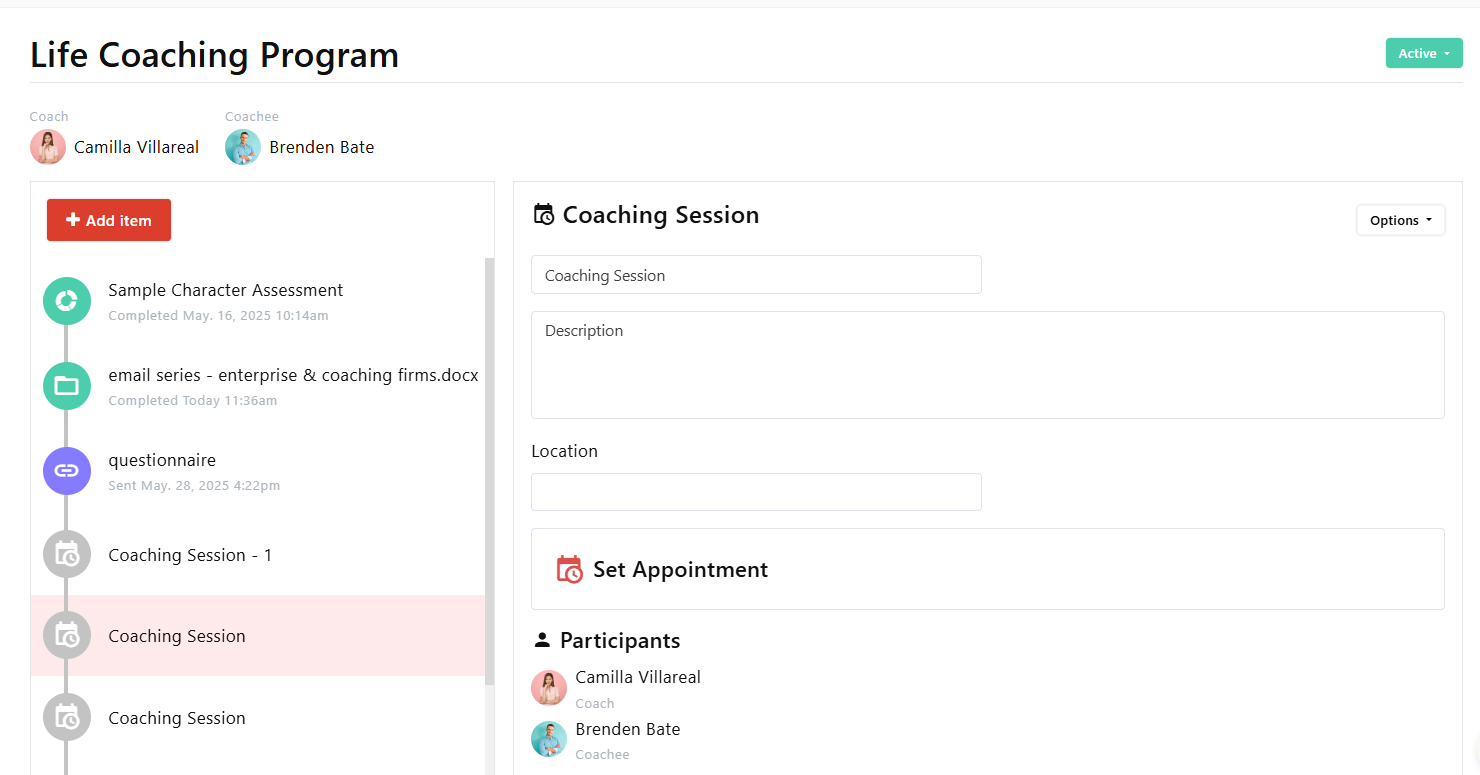
 Item Status Colors
Each engagement item displays a color indicator for its current status:
 Gray: Not yet scheduled
 Purple: Scheduled
 Green: Completed
Drag & Drop
You can rearrange items before scheduling them. Once an item is scheduled, you can still edit its details, but reordering will be locked.
Editing Options
To edit a task within an engagement, click Options in the task field. From there, you can perform several actions:
- Mark as Completed: Use this for items that were completed before the engagement setup.
- Associate a Record: Attach related session notes or completed assessments.
- Duplicate: Create a copy of an existing item.
- Delete: Remove an item from the engagement.
Draft vs. Active Engagements
Draft:
A draft engagement is visible only to the coach. It indicates that the program is still being prepared and is not yet ready to be shared with coachees.
To activate it, click the dropdown next to “Draft” and select “Mark as Active.”
Active:
An active engagement is visible only to the coach and can now be shared with coachees.
To share it, go to the Engagement List, click Options next to the desired engagement, and select “Share with Coachee.”
Completed:
When all items within an engagement have been finished, you can mark it as completed.
Click the dropdown next to “Active” and select “Mark as Completed.”
Share Engagements with Coachees
By default, active engagements are visible to coaches only. To make an engagement visible to a coachee:
- Go to the Engagement List.
- Click Options next to the desired engagement.
- Select Share with Coachee.
If Not Shared:
- Coachees will only receive scheduled items through their calendar, email, or in-app notifications.
If Shared:
- Coachees can access it directly under their Engagement tab. Each item within the program will display a clear status indicator to help track progress:
- Gray: Unscheduled or locked items
- Purple: Scheduled items
- Green: Completed items
Export Engagements
Coaches can export engagement data for reporting, progress tracking, or record-keeping. Exports can be customized using filters to retrieve only the relevant data.
Steps to Export Engagements:
- Open the Engagement tab in the left-hand menu of your portal.
- Click the Export button at the top-right corner.
- Apply filters such as date range, coach name, coachee name, or engagement status.
- Click Export to download your data in CSV format, compatible with tools like Excel or Google Sheets.

